
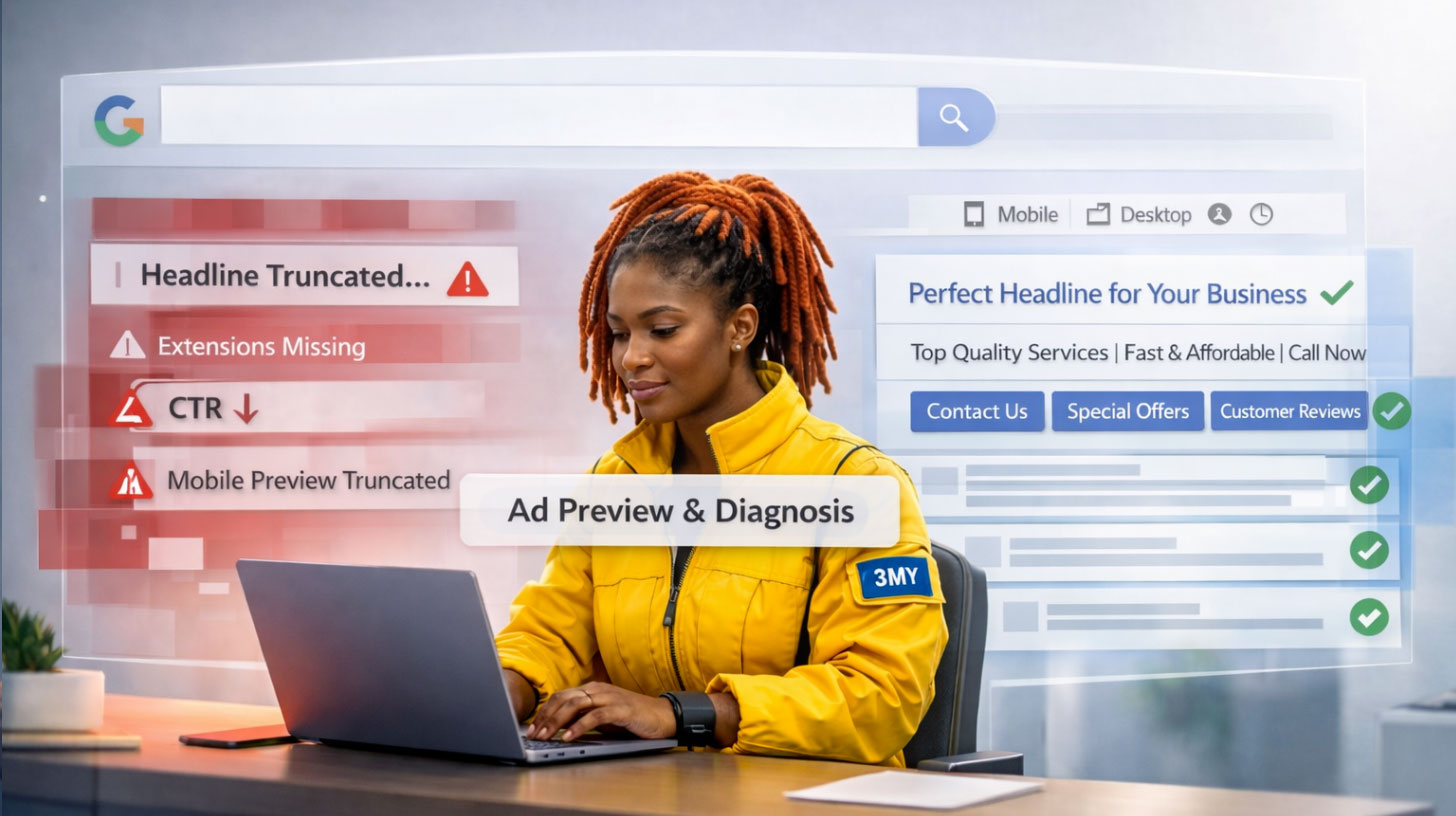
Even the most meticulously optimized campaigns can suffer if your ads don’t look right in real-world search results. Hidden issues—cropped headlines, missing extensions, or unpolished mobile views—can severely undermine ad performance and brand perception.
To avoid surprises and ensure quality, this guide walks you through every available preview method, revealing where to look and what to check so your message always appears as intended.
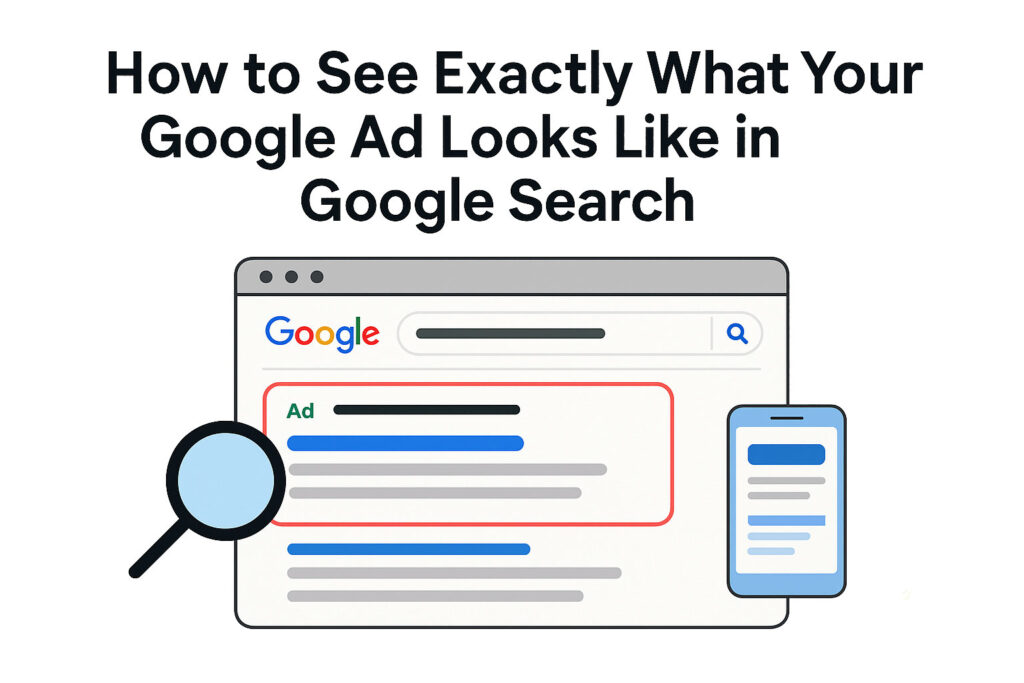
Visual preview matters: Even small layout issues in search ads can hurt performance. Here’s what to check first.
1. Why Manual Google Searches Are a Bad Idea
It might seem straightforward to search your keyword in Google to preview your ad, but this method introduces several hidden risks:
- CTR distortion: Seeing your ad triggers an impression without a click, artificially dragging down your click-through rate.
- Auction fatigue: Frequent internal searches can signal disinterest and temporarily suppress your ad visibility.
- Inaccurate targeting: You can’t reliably simulate other locations, devices, or scheduled ad timing.
- Ad rotation uncertainty: What you see may not be the same version users will receive.
In short: manual search tactics can harm both your performance data and budget.
2. Method 1: Ad Preview & Diagnosis Tool (Best Practice)
A. What It Is
A built-in, budget-safe utility within Google Ads designed specifically to preview how ads appear for any keyword, in any region or language, on desktop or mobile.
B. How to Access It
- Navigate to Tools & Settings → Planning → Ad Preview & Diagnosis
- Or search for “Ad Preview” within your Google Ads account
C. How to Use
- Select campaign and ad group
- Choose language, device, and location
- Enter your keyword
- View your ad exactly as it appears—extensions, mobile formatting, and all
D. Why It Matters
- Protects performance stats
- Enables precise locale and device simulation
- Displays scheduled variations
- Identifies reasons for non-appearance (budget limitation, approval issues)
This tool is the gold standard for visual compatibility checks.
3. Method 2: Ad Copy View in the Google Ads Interface
When your focus is the content and structure of the ads themselves:
A. Steps to View
- Go to Campaign → Ads & Extensions → Ads
- Click on the ad
- Review headlines, descriptions, display paths, and dynamic keyword insertion
B. What You’ll Learn
- Complete ad text hierarchy
- Character limit adherence
- Quality of default text for DKI
- URL and path formatting
This method is ideal for verifying text content and structural logic without relying on visual previews.
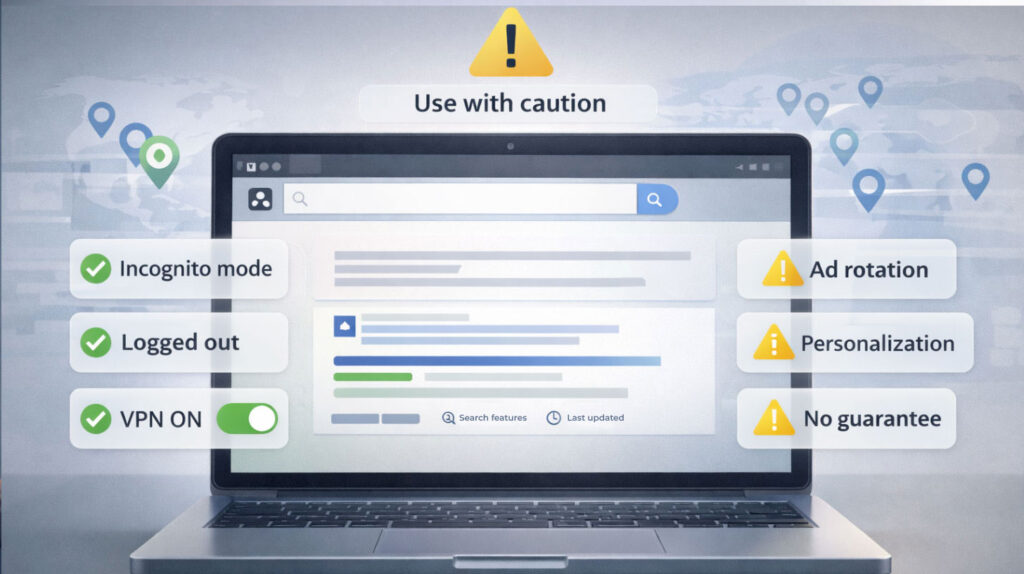
4. Method 3: Manual Incognito / VPN Search (With Caution)
Sometimes you need to see your actual ad in action—but proceed carefully:
A. Best Practices
- Use Incognito/Private Mode
- Sign out from all Google accounts
- Never click your own ad
- Use VPN/software to mimic geographic targeting
B. Caveats
- Ad rotation and personalization still apply
- No guarantee your ad will appear
- Can impact bidding auction signals subtly
Useful for quick spot checks but not reliable for ongoing QA.
5. Method 4: Chrome Extensions for Preview
Several tools can help you inspect your live ads:
- Google Ads Preview Tool: mimics real search results via the API
- Ads Transparency Spotlight: displays competitor and your active ads
- SERP Preview Tools: show how ads look on different breakpoints
These are useful for parallel inspection and competitor benchmarking—but may miss localization or rotation nuances.
6. Method 5: Google Ads API (Advanced Monitoring)
Scale up your preview strategy with the Google Ads API:
A. Why Use It
- Automatically check appearance across multiple keywords, regions, devices
- Capture display variations (such as Responsive Ads)
- Analyze extension show rates and creative performance
B. Prerequisites
- Developer resources
- Familiarity with APIs and automation
- Ongoing maintenance
Great for pros but not recommended for small-scale use.
7. What to Check in Your Ad Preview
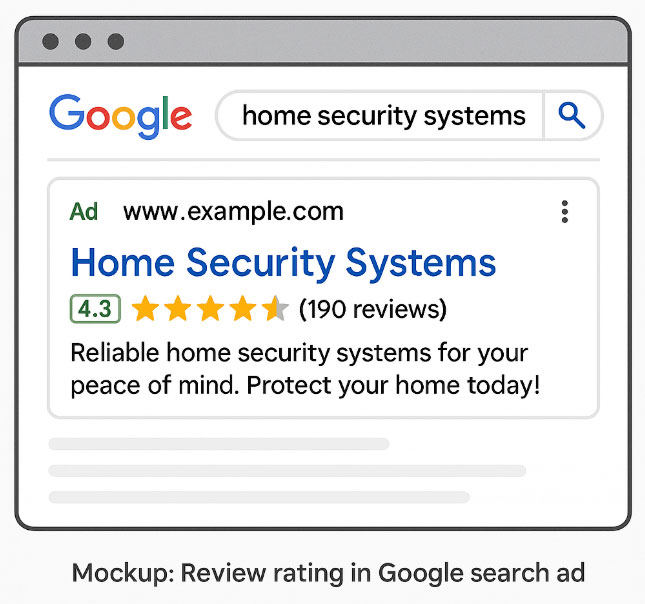
A. Ad Extensions
- Are sitelinks, callouts, structured snippets, and call buttons visible and do they render correctly?
B. Device-Specific Appearance
- On mobile, watch for truncated headlines, clipped paths
- On desktop, ensure no awkward line wraps
C. Dynamic Keyword Insertion (DKI)
- Check default text formatting
- Ensure syntax and grammar hold up across variations
D. Ad Rotation & Testing
- Confirm that your featured A/B variants appear properly
- Validate ad schedules and seasonal adjustments
E. Localization & Scheduling
- Test across locations and time zones
- Switch language settings to simulate international audiences
8. 3MY’s Workflow for Ad Previews
At 3MY, previewing ads is integral to quality assurance, not optional:
- Always use Ad Preview & Diagnosis for each campaign release
- Mobile and desktop checked separately
- Extensions tested under character constraints
- Blind tests for DKI and RSA creatives
- Real-time competitor comparisons
- Screenshot baseline for historical tracking
This consistency ensures your ads always meet expectations.
9. Final Takeaways
Previewing ads visually is as crucial as crafting performance-driven campaigns. Errors in display can erode trust and waste budget — often without any clear signal in metrics.
Inspect what users see — not what you think they see.
Want a Full Ad Preview Audit?
Our complimentary review includes:
- Visual and contextual validation of all active ads
- Device, region, and language correctness check
- Extension performance and DKI review
- Actionable recommendations for improved visual consistency