


If you run an online store, data is your edge. E-commerce tracking reveals:
- What products are being viewed, added to cart, and purchased
- Where users drop off in the funnel
- Which campaigns bring actual sales
Without proper tracking, you can’t measure ROI, optimize performance, or scale profitably. This guide outlines a professional, clean setup using Google Tag Manager (GTM), Google Analytics 4 (GA4), and Google Ads.
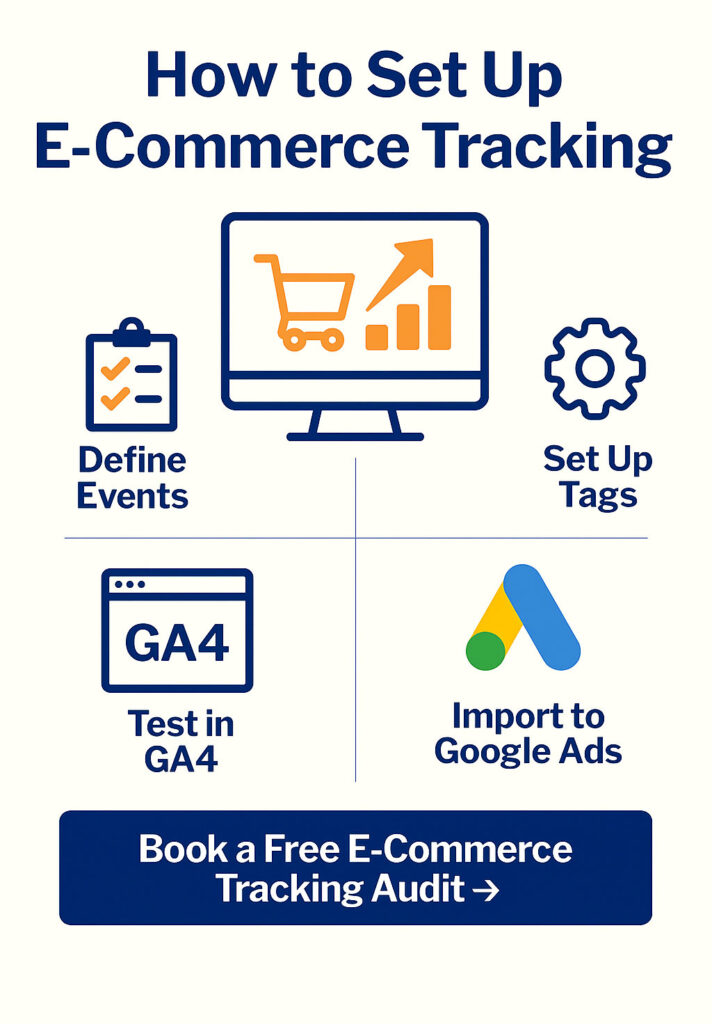
Part 1: Define Your Measurement Strategy
Before touching code or platforms, map out your store’s funnel:
- Product view (view_item)
- Add to cart (add_to_cart)
- Begin checkout (begin_checkout)
- Add payment info (add_payment_info)
- Purchase (purchase)
Optional but recommended:
- sign_up (if account creation)
- login (returning users)
- view_promotion (for banners)
Each step should be tracked as an event with structured parameters like product ID, value, and currency.
Part 2: GA4 E-Commerce Events — Structure & Requirements
GA4 supports enhanced e-commerce events out of the box. Key events:
- view_item: product page loaded
- add_to_cart: product added to cart
- begin_checkout: checkout started
- purchase: transaction completed
Each event requires:
- items: array of products with item_id, item_name, quantity, price
- value: total transaction value (for purchase)
- currency: ISO code (e.g., “USD”)
Part 3: Set Up in Google Tag Manager
Step 1: Enable GA4 in GTM
- Create a GA4 Configuration tag using your Measurement ID
- Trigger: All Pages
Step 2: Configure GA4 Event Tags
For each event (view_item, add_to_cart, etc.):
- Tag Type: GA4 Event
- Event Name: e.g., add_to_cart
- Parameters: pull from variables or custom data layer
- Trigger: Based on page interaction or custom dataLayer.push
Step 3: Push Data to Data Layer
Developer team must push structured data. Example:
window.dataLayer.push({
  event: "add_to_cart",
  ecommerce: {
    currency: "USD",
    value: 49.99,
    items: [
      {
        item_id: "SKU12345",
        item_name: "Blue Hoodie",
        price: 49.99,
        quantity: 1
      }
    ]
  }
});
Step 4: Test With Debug Tools
- GTM Preview Mode
- GA4 DebugView

Part 4: Google Ads Conversion Tracking
Step 1: Import Conversions from GA4
- Google Ads > Tools & Settings > Conversions
- Click “Import” > GA4 > Web > Purchase
Step 2: Use Google Ads Conversion Tag (Optional)
- If not importing from GA4, place Google Ads tag with ID and label in GTM
- Trigger on thank-you page only
Step 3: Use Value-Based Bidding
- Enable “Target ROAS” or “Maximize Conversion Value”
- Ensure purchase event includes value field
Part 5: Shopify / WooCommerce / Custom CMS Tips
Shopify:
- Use Elevar or native GA4 apps
- Push product data to data layer
WooCommerce:
- Use GTM4WP or PixelYourSite plugin
- Enable e-commerce in GA4 settings
Custom Sites:
- Manual data layer pushes by developers
- Must follow GA4 schema strictly
Part 6: QA and Maintenance Checklist
- Test each event for multiple product types
- Validate parameters via DebugView
- Monitor for duplicates or missing conversions
- Ensure privacy/consent settings align with regulations (GDPR, CCPA)
Part 7: Common Errors and Debugging Tips
| Problem | Why It Happens | How to Fix |
|---|---|---|
| No data in GA4 for purchase | Broken or missing trigger | Use GTM Preview & DebugView to test |
| Value shows as 0 | value not passed or wrong format | Use numeric format (49.99 not “49.99“) |
| Missing items in items[] | Malformed object | Ensure structure matches GA4 docs |
| Duplicate purchase | Tag fires on every pageview | Use order ID to limit firing |
| Missing currency | Field omitted | Hardcode or use CMS variable |
| GA4 & Ads mismatch | Tags not synced or wrong model | Use GA4 import and proper attribution rules |
| Events don’t fire at all | Consent not granted / container not loaded | Check Consent Mode and Tag Assistant |
Visual QA Checklist Before Launch
- GTM Preview shows tags firing
- GA4 DebugView logs all events
- Purchase triggers only once
- Value, currency, and item arrays are valid
- Consent banner tested
- Attribution data matches across GA4 and Ads
Work With 3MY: Full Funnel Tracking That Scales
We help e-commerce brands implement precise, scalable tracking systems that:
- Connect ad spend with actual revenue
- Enable value-based Google Ads bidding
- Power full-funnel insights in GA4 and CRM
- Automate reporting and error alerts
Want to stop guessing and start optimizing?