


If you run an online store, data is your edge. E-commerce tracking reveals:
- What products are being viewed, added to cart, and purchased
- Where users drop off in the funnel
- Which campaigns bring actual sales
Without proper tracking, you can’t measure ROI, optimize performance, or scale profitably. This guide outlines a professional, clean setup using Google Tag Manager (GTM), Google Analytics 4 (GA4), and Google Ads.
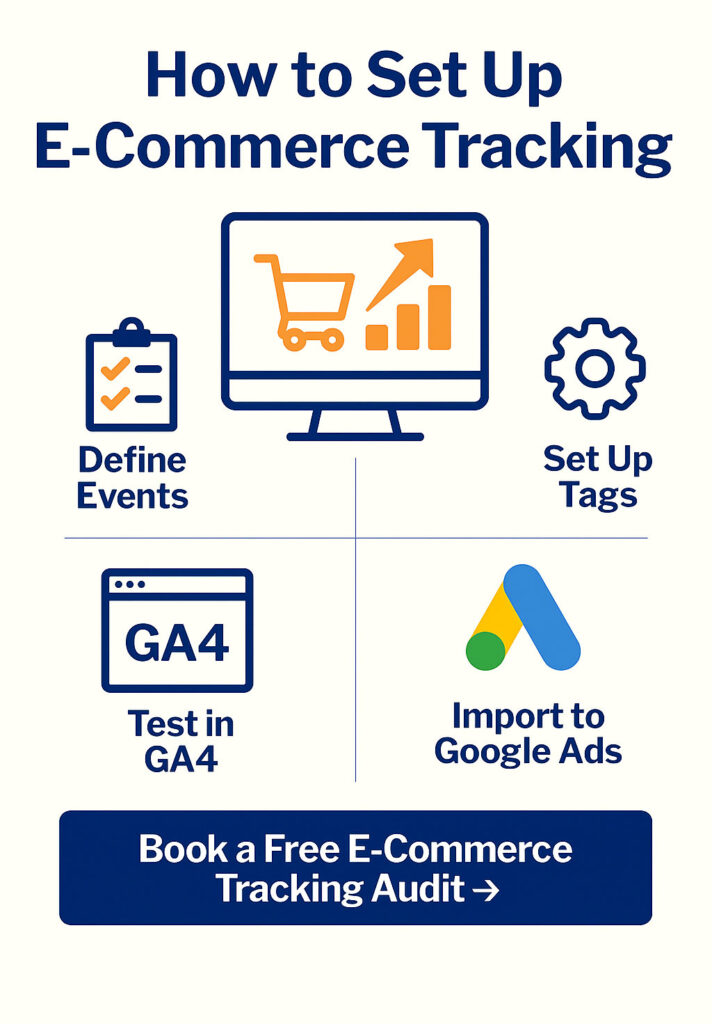
Part 1: Define Your Measurement Strategy
Before touching code or platforms, map out your store’s funnel:
- Product view (view_item)
- Add to cart (add_to_cart)
- Begin checkout (begin_checkout)
- Add payment info (add_payment_info)
- Purchase (purchase)
Optional but recommended:
- sign_up (if account creation)
- login (returning users)
- view_promotion (for banners)
Each step should be tracked as an event with structured parameters like product ID, value, and currency.
Part 2: GA4 E-Commerce Events — Structure & Requirements
GA4 supports enhanced e-commerce events out of the box. Key events:
- view_item: product page loaded
- add_to_cart: product added to cart
- begin_checkout: checkout started
- purchase: transaction completed
Each event requires:
- items: array of products with item_id, item_name, quantity, price
- value: total transaction value (for purchase)
- currency: ISO code (e.g., “USD”)
Part 3: Set Up in Google Tag Manager
Step 1: Enable GA4 in GTM
- Add a Google tag and enter your GA4 Measurement ID. If a guide still tells you to create a “GA4 Configuration” tag, it was written before 2024: Tag Manager retired that tag type and the Google tag took its place.
- Trigger: All Pages
Step 2: Configure GA4 Event Tags
For each event (view_item, add_to_cart, etc.):
- Tag Type: GA4 Event
- Event Name: e.g., add_to_cart
- Parameters: pull from variables or custom data layer
- Trigger: Based on page interaction or custom dataLayer.push
Step 3: Push Data to Data Layer
Developer team must push structured data. Example:
window.dataLayer.push({
  event: "add_to_cart",
  ecommerce: {
    currency: "USD",
    value: 49.99,
    items: [
      {
        item_id: "SKU12345",
        item_name: "Blue Hoodie",
        price: 49.99,
        quantity: 1
      }
    ]
  }
});
Step 4: Test With Debug Tools
- GTM Preview Mode
- GA4 DebugView

Part 4: Google Ads Conversion Tracking
Step 1: Import Conversions from GA4
- In Google Ads: Goals > Conversions > Summary > + New conversion action
- Choose Import > Google Analytics (GA4) > Web, then pick your purchase event
One prerequisite trips almost everyone up the first time: an event only appears in that import list if it has been marked as a key event in GA4 first. Analytics stopped saying “conversion” in 2024 — in GA4 these are key events, and “conversion” is now the Google Ads word for the same action. Allow up to 24 hours before the imported data starts showing in Google Ads.
Step 2: Use Google Ads Conversion Tag (Optional)
- If not importing from GA4, place Google Ads tag with ID and label in GTM
- Trigger on thank-you page only
Step 3: Use Value-Based Bidding
- Enable “Target ROAS” or “Maximize Conversion Value”
- Ensure purchase event includes value field
Part 5: Shopify / WooCommerce / Custom CMS Tips
Shopify:
- Start with the native GA4 integration; add a third-party app such as Elevar only if the events you need are missing
- Push product data to data layer
WooCommerce:
- Use GTM4WP or PixelYourSite plugin
- Enable e-commerce in GA4 settings
Custom Sites:
- Manual data layer pushes by developers
- Must follow GA4 schema strictly
Part 6: QA and Maintenance Checklist
- Test each event for multiple product types
- Validate parameters via DebugView
- Monitor for duplicates or missing conversions
- Ensure privacy/consent settings align with regulations (GDPR, CCPA)
Part 7: Common Errors and Debugging Tips
| Problem | Why It Happens | How to Fix |
|---|---|---|
| No data in GA4 for purchase | Broken or missing trigger | Use GTM Preview & DebugView to test |
| Value shows as 0 | value not passed or wrong format | Use numeric format (49.99 not “49.99“) |
| Missing items in items[] | Malformed object | Ensure structure matches GA4 docs |
| Duplicate purchase | Tag fires on every pageview | Use order ID to limit firing |
| Missing currency | Field omitted | Hardcode or use CMS variable |
| GA4 & Ads mismatch | Tags not synced or wrong model | Use GA4 import and proper attribution rules |
| Events don’t fire at all | Consent not granted / container not loaded | Check Consent Mode and Tag Assistant |
Visual QA Checklist Before Launch
- GTM Preview shows tags firing
- GA4 DebugView logs all events
- Purchase triggers only once
- Value, currency, and item arrays are valid
- Consent banner tested
- Attribution data matches across GA4 and Ads
Work With 3MY: Full Funnel Tracking That Scales
We help e-commerce brands implement precise, scalable tracking systems that:
- Connect ad spend with actual revenue
- Enable value-based Google Ads bidding
- Power full-funnel insights in GA4 and CRM
- Automate reporting and error alerts
Want to stop guessing and start optimizing?