


Seeing your Google Ads marked as “Disapproved” can stall your campaign, drain time, and delay performance. But it’s rarely arbitrary. Google’s ad review process is automated first — and strict by design. The system checks for compliance across content, destination, technical setup, and account behavior.
Understanding how and why ads get rejected is essential to fix issues fast and avoid repeated disapprovals that may harm your account reputation.
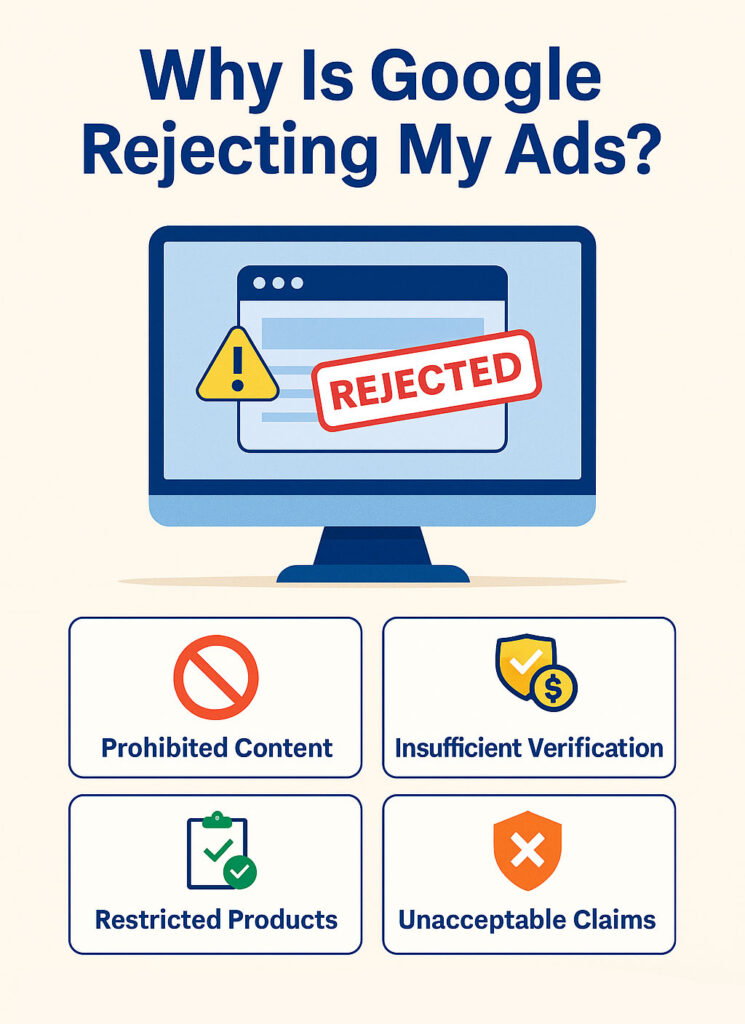
Common Reasons Why Google Rejects Ads
Google rejects ads when they violate its advertising policies or technical requirements. Below are the most frequent causes — and how to fix them effectively.
1. Policy Violations: Misleading or Prohibited Claims
What it means: Your ad includes content that violates Google’s advertising policies on honesty, safety, or user experience. Common violations include:
- Exaggerated or unverifiable claims:
“Guaranteed results”, “Lose 10kg in 7 days” - Clickbait language:
“You won’t believe this trick…” - Promotion of restricted categories without approval:
alcohol, gambling, adult services, weapons
How to fix:
- Rewrite ad copy to be clear, factual, and evidence-based.
- Avoid urgent emotional triggers or overpromising.
- Use Google’s Policy Manager in Ads to locate the exact violation and view suggested corrections.
2. Destination Issues: Unacceptable Landing Page
What it means: The final URL fails Google’s site quality checks. Common triggers include:
- Broken links or pages under construction
- Slow load times, especially on mobile
- Excessive pop-ups or automatic redirects
- Lack of relevant, original content
- Mismatch between ad promise and page content
How to fix:
- Make sure the landing page loads reliably on both desktop and mobile
- Deliver on what your ad offers (e.g., if the ad says “free demo,” the page should clearly provide one)
- Use PageSpeed Insights and open the page on an actual phone. Google shut its standalone Mobile-Friendly Test down on 1 December 2023, so a guide that still points you there has not been touched since
- Eliminate distracting or intrusive elements
3. Trademark or Copyright Violations

What it means: Your ad references a trademarked brand, product name, or logo that you’re not authorized to use. This can happen even with indirect brand mentions.
How to fix:
- Remove any trademarked terms unless you have formal permission
- If you’re a verified reseller or partner, request authorization via Google’s Trademark Authorization Form
- Avoid using competitor brand names in headlines or URLs
4. Restricted Industries Without Verification
What it means: You’re advertising in a regulated vertical that requires pre-approval. Common examples:
- Medical services, pharmaceuticals, supplements
- Financial products (loans, insurance, credit scoring, crypto)
- Election-related, political, or government-affiliated ads
- Alcohol, adult content, gambling
How to fix:
- Complete advertiser verification for the category in question. Start early: Google allows itself up to 5 business days to review what you submit, and the account is paused if you miss the deadline it sets you
- Provide documentation and comply with advertiser identity verification if requested
- Until approval, avoid running ads in these categories — they’ll be automatically rejected
5. Editorial Standards and Formatting Errors
What it means: Even if your offer is valid, formatting mistakes can trigger ad rejections. These include:
- Use of all caps: “LIMITED TIME OFFER!”
- Multiple punctuation marks: “Buy now!!!”
- Promotional phone numbers or email addresses in headlines
- Overuse of symbols or emojis
- Misleading or incomplete call-to-actions
How to fix:
- Follow Google’s Editorial Guidelines: keep formatting clean, professional, and grammatically correct
- Stick to sentence case (capitalize only the first letter of each sentence or proper nouns)
- Avoid gimmicks that resemble spam or clickbait
- Place contact info such as phone numbers in the appropriate assets — what Google called ad extensions until the 2022 rename — and not in the ad text
What to Do If Your Ad Is Disapproved
- Check the Reason
Log into Google Ads, go to the “Status” column, and hover over “Disapproved.” You’ll see a reason with a policy link. - Edit and Resubmit
Once edited, Google re-reviews the ad automatically. Google publishes no guaranteed turnaround, so treat the “under 24 hours” figure quoted all over the web as a rough expectation, not a promise. - Appeal If You Think It’s a Mistake
Click on the disapproval notice and select “Appeal.” Use precise language to explain why the ad complies.

Prevention Tips: Avoiding Future Rejections
| Practice | Why It Matters |
|---|---|
| Review Google Ads Policies Monthly | Policies change — stay current |
| Use Google Ads Preview Tool | Catch format issues before publishing |
| Link to live, mobile-optimized pages | Broken or slow pages get flagged |
| Avoid “hard” claims without proof | Triggers the misleading content filter |
| Create ad variants for sensitive topics | Use softer language to stay compliant |
Work With 3MY: Ad Compliance Without the Guesswork
At 3MY, we help you run compliant campaigns from day one. We provide:
- Pre-launch ad policy checks
- Landing page reviews to meet Google’s quality standards
- Troubleshooting support for disapproved ads
- Strategy adjustments for sensitive verticals (med, finance, SaaS)
Tired of ads being rejected or stuck in review?