

Why Does Google Reject Ads?
Google doesn’t reject ads arbitrarily. Disapprovals typically stem from violations of its advertising policies or quality standards designed to protect users, ensure transparency, and maintain platform integrity. While frustrating, most ad rejections are fixable — and understanding the underlying cause is the fastest path to resolution. This guide breaks down the most common reasons your ads may be blocked and how to correct them efficiently.
Common Reasons Why Google Rejects Ads
Understanding why your ads are rejected is essential to keeping campaigns running smoothly. Below are the most common disapproval triggers — along with clear explanations and actionable fixes.
1. Policy Violations: Misleading or Prohibited Claims
What it means: Your ad copy promises outcomes or promotes categories that violate Google’s Ad Policies.
Common triggers:
- Phrases that imply guaranteed results:
“Lose 10kg in 7 days”, “100% guaranteed ROI” - Clickbait language designed to provoke curiosity:
“You won’t believe what happened…” - Promotion of restricted items like unauthorized health supplements, gambling services, or adult products without permission.
Why it matters: Google aims to protect users from deceptive, exaggerated, or high-risk content. Even if your offer is legitimate, aggressive wording can trigger automatic disapproval.
Fix:
- Rewrite ad text with neutral, factual phrasing.
- Replace hype-driven language with value-driven benefits.
- Reference Google’s Advertising Policies and open Policy manager in your account (Tools > Troubleshooting > Policy manager) to see the exact rule you tripped.

2. Landing Page Problems (“Unacceptable Destination”)
What it means: The URL you’re sending users to doesn’t meet Google’s experience or security standards.
Typical issues:
- The page is broken (404 or server error) or under construction.
- Pages load slowly, especially on mobile devices.
- The page includes aggressive pop-ups, redirects, or auto-plays.
- Content on the page doesn’t align with the ad’s message.
Why it matters: Google evaluates not just your ad, but the entire user journey. A poor landing experience can harm users and undermine ad credibility.
Fix:
- Test the URL with PageSpeed Insights, then open the page on a real phone. Google retired its standalone Mobile-Friendly Test on 1 December 2023, so any checklist still sending you there has not been updated since.
- Ensure the content clearly matches what the ad promotes.
- Avoid excessive pop-ups or forced sign-ups before value is delivered.
3. Trademark or Copyright Violations
What it means: You’ve used a protected brand name, slogan, or logo without legal authorization.
Examples:
- Referencing a competitor’s brand in ad copy.
- Including registered trademarks in headlines or images (e.g., using “Nike” in an unauthorized apparel ad).
- Displaying third-party logos you don’t have rights to.
Why it matters: Even comparative advertising must comply with intellectual property laws. Google restricts ads that may infringe on IP rights.
Fix:
- Remove any trademarks unless you’re explicitly authorized.
- If you’re a licensed reseller or affiliate, submit a Trademark Authorization Request to Google.
- Avoid using competitor brand names as keywords unless allowed in your country.

4. Restricted Content Without Proper Verification
What it means: You’re advertising in a sensitive category that requires pre-approval from Google.
Applies to:
- Financial services (loans, credit, crypto products)
- Health services (clinics, medical treatments, supplements)
- Political ads, election-related content
- Alcohol, adult content, or gambling
Why it matters: These categories carry a higher risk for misinformation or regulatory violations. Google enforces stricter screening to protect users.
Fix:
- Complete the appropriate Advertiser Verification or Identity Verification process in your account settings.
- Ensure your site and ads meet country-specific legal requirements.
- Pause campaigns in sensitive verticals until approval is granted.
5. Editorial & Format Violations
What it means: Even if your content is legal and policy-compliant, poor formatting can still get your ad rejected.
Examples:
- Use of excessive capitalization: “ACT NOW FOR HUGE SAVINGS”
- Overuse of punctuation: “Click here now!!!”
- Phone numbers placed directly in ad headlines or descriptions
- Emojis or non-standard symbols inserted into text fields
Why it matters: Google maintains strict editorial standards to ensure a consistent, professional experience across its ad ecosystem.
Fix:
- Use standard sentence case and correct grammar.
- Avoid placing phone numbers in ad text — use call assets instead. Google renamed extensions to assets in 2022: the feature is the same, the label in the interface is not.
- Remove emojis or decorative characters unless the format allows them (some Demand Gen and YouTube placements do). One note on vocabulary: Discovery campaigns no longer exist — Google finished folding them into Demand Gen in January 2024.
What If I Think the Rejection Is a Mistake?
Even Google’s automated review systems aren’t perfect. Ads can be mistakenly flagged for policy violations — especially in complex or highly regulated niches.
Here’s what to do if you believe the rejection was incorrect:
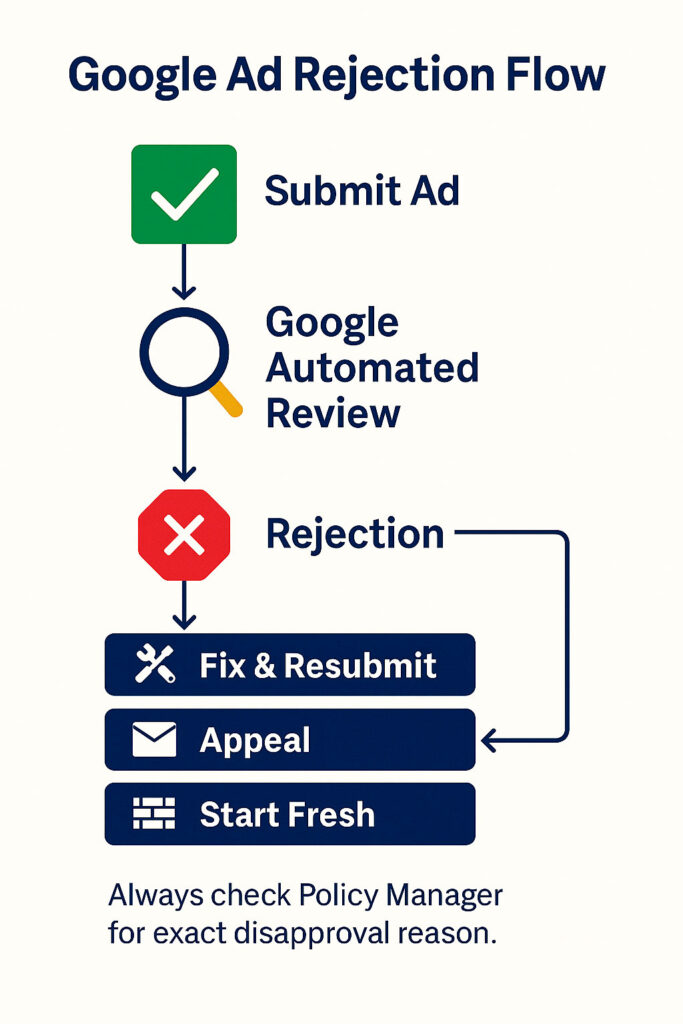
- Check the exact reason for disapproval
Open the ad preview panel in your Google Ads account. Google usually cites a specific policy or issue. This is your starting point. - Review the relevant policy
Open Policy manager in your account and read the rule it cites in full (trademarks, medical claims, financial services and so on each have their own page). - Make basic adjustments and resubmit
Sometimes rewording a phrase or replacing one image can resolve the problem. Update the ad and submit it for review again. - File an official appeal
If you believe the ad is compliant and rejection persists, use the “Appeal” button directly in the interface. Be brief but clear in your reasoning. Note the ceiling before you start: after three unsuccessful appeals on the same ad, the button stops working and you have to go through support. - Still rejected? Start fresh
In cases where appeals fail, it’s often faster to build a new version of the ad from scratch — using new assets and copy to reset the review context.
How to Prevent Future Ad Rejections
Most issues can be avoided with a proactive setup process. Here’s how to minimize risk across all campaigns:
- Use a pre-launch checklist
Review ad copy, destination URL, image/video assets, and audience targeting before pushing live. Look out for common violations (clickbait, unclear value, formatting). - Stay current with Google’s ad policies
Policies evolve frequently — especially for sensitive topics like healthcare, financial services, or user data collection. - Train your team (or clients)
Ensure everyone involved in copywriting, design, or landing page development understands Google’s quality and compliance expectations.

Work With 3MY: Get Your Ads Approved and Performing
At 3MY, we don’t just write ads — we help you keep them running and converting.
We specialize in:
- Resolving disapproved ads quickly and accurately
- Adapting offers to meet Google’s evolving policy landscape
- Setting up verified accounts in regulated industries (medical, finance, legal)
- Getting ads through review without watering down the offer — nobody can promise Google’s verdict in advance, but most rejections have a cause you can name and fix