


You installed conversion tracking one of two ways — the Google tag pasted straight into your site, or the same tag sitting inside a Google Tag Manager container — and now something feels off. Maybe the numbers look doubled. Maybe nobody remembers which method is even live anymore, because the person who set it up left, or the site got a new theme, or the “thank you” page moved to a different URL. That’s the real question behind “Google Ads conversion tracking Google Tag Manager”: not which one is technically better, but who’s responsible for it six months from now.
Here’s the short answer: Google allows both, doesn’t prefer one, and the thing most setup guides still tell you to add first is a step you no longer need.

Google Ads Conversion Tracking With Google Tag Manager (Or Without It)
Google is direct about this in its own documentation: both a Google tag installed directly on your site and the same tag deployed through a Google Tag Manager container are supported, fully, with no stated preference for either. There’s no page anywhere telling you to migrate off one and onto the other. If a blog post frames this as a decision with a right answer, that post is selling you something the choice itself doesn’t require.
If you already have GTM running for analytics, adding the conversion tag to the same container is usually the lighter lift — one place to look, one place to update. If you don’t run GTM at all and only need to fire one or two conversion tags, installing the Google tag directly means one fewer system in the chain. Neither path is a mistake. What goes wrong isn’t the choice — it’s what happens after the choice, when someone adds the tag a second time without checking whether it’s already there.
The Step Half the Guides Still Tell You to Add — and You Probably Don’t Need It
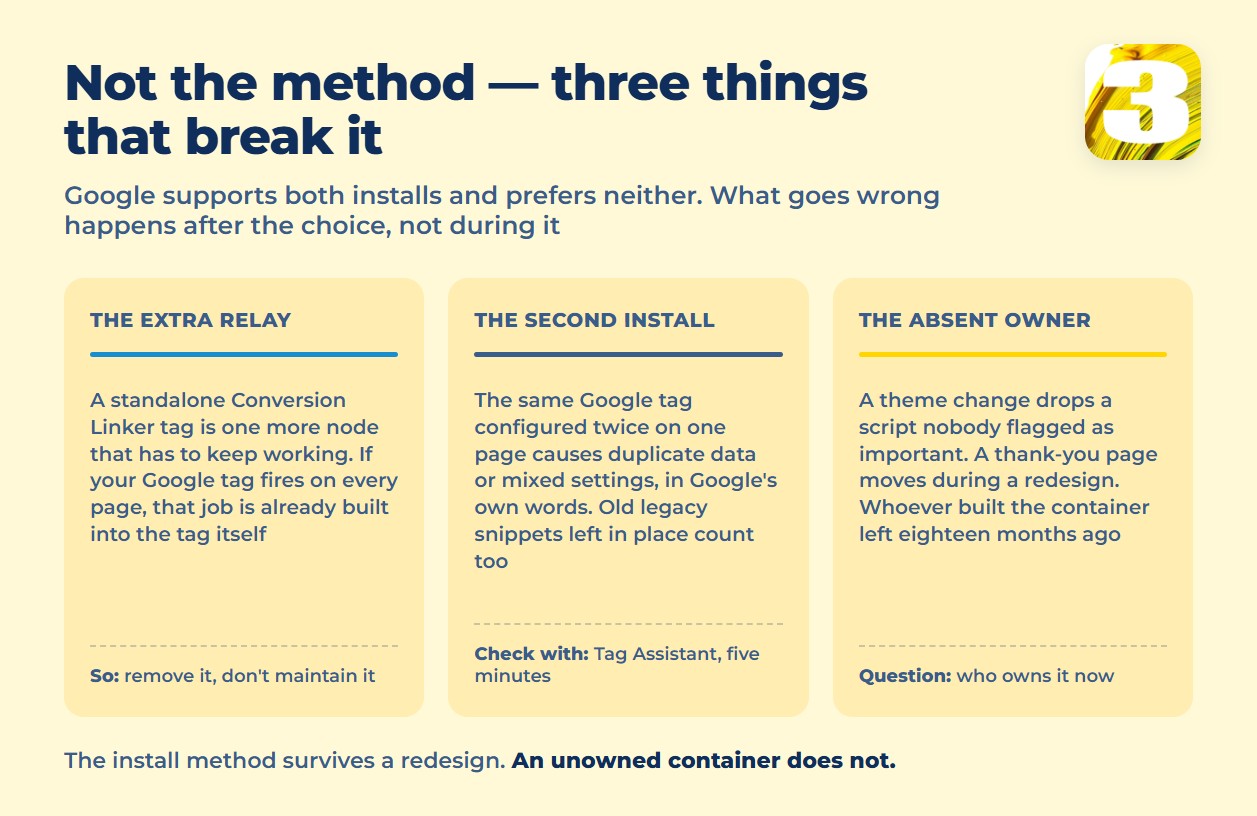
A lot of the setup tutorials ranking for this topic open with the same first move: install a separate Conversion Linker tag before anything else. That used to matter. It doesn’t anymore, at least not as a separate step. Google’s own help page on the Conversion Linker is explicit: as long as your Google tag fires on every page of your site, the function that captures the `gclid` click identifier and writes it to a first-party cookie is already built into the Google tag itself.
That means a standalone Conversion Linker tag, sitting in your container as its own entry with its own trigger, is one more node that has to keep working — one more thing to check when something breaks, and one more line item for whoever inherits the container later. If your Google tag already covers every page, you can remove it rather than maintain it.
What Actually Breaks: Not the Method, the Duplicate
The failure mode in this whole debate isn’t “GTM versus direct” — it’s the same tag installed more than once. Google names this directly. If the same Google tag is configured two or more times on the same page, it can cause duplicate data or mixed settings. Having multiple Google tags or multiple GTM containers live on the same page causes the same kind of trouble. And leftover legacy tags — the old-style Google Ads conversion tracking snippet from years back, still sitting on a converting page next to a newer Google tag — lead to the same double counting.
None of that is a GTM problem or a direct-install problem specifically. It’s a housekeeping problem: nobody removed the old thing when they added the new thing. What that leaves behind is described in one sale, counted more than once.
The Other Fork: Native Ads Tag vs. Importing From GA4
There’s a second decision that gets folded into this conversation and shouldn’t be confused with the first. You can track a conversion with a native Google Ads tag that fires directly on the confirmation event, or you can build the event as a GA4 key event and import it into Google Ads as a conversion. The native tag reports straight into your Ads account — you own the setup end to end, and whoever manages the Ads account can see and edit it without touching a second product. The GA4 route depends on GA4 first recognizing the event correctly and then being linked into Ads, so ownership splits across two accounts and two people if your analytics and ads aren’t managed by the same person. Neither is wrong. But if you don’t know which one is actually firing on your site, you don’t have a tracking problem yet — you have a “nobody wrote down what we did” problem.
The Real Criterion Isn’t Convenience — It’s Who Shows Up in Six Months
This is the part the how-to guides skip, because it isn’t a technical answer. A tag lives on your site, and your site is what breaks it. Someone redesigns the homepage and the new theme strips out a script tag nobody flagged as important. The “thank you” page gets a new URL during a redesign, and the trigger inside the container still points at the old one. The person who set up the container in the first place moved on eighteen months ago, and nobody currently on staff has ever opened it.
None of this is about GTM versus direct install. It’s about whether anyone owns the container — or the tag — as part of an ongoing job, not a one-time setup task. The symptoms that show up once that ownership gap opens are worth recognizing early. They are mapped out in where to look when conversion tracking breaks.
On our end, this is exactly why page copy and structure are part of what we build when we design a site: a page called “thank you” today shouldn’t quietly become a page called “order-confirmed” during a redesign without someone checking what depends on that URL. That’s covered in how we approach website development for growing businesses — the pages a tag depends on don’t get moved without someone checking what’s wired to them first.
Check Your Conversion Tracking in Five Minutes
You don’t need our help to find out if you have a duplicate right now. Install the Tag Assistant browser extension, open your own site, and walk through to your order confirmation or thank-you page like a customer would. Tag Assistant lists every tag that fires on that page. Count how many separate conversion tags show up for the same event. One is normal. Two Google tags, or a Google tag plus an old legacy conversion snippet, both firing on the same confirmation load, is the double-counting Google warns about — and it’s visible in that list before you touch anything else.
While you’re checking tags, it’s worth doing the same for Meta if you run Facebook or Instagram ads — the tool most guides still point to for that job was retired, and we wrote about what replaced it.
If you want to go one step further, Google’s own guide to setting up Google Ads conversions in Tag Manager walks through the actual container steps — that’s the right place for the how-to, not this page.
What to Take Away
GTM or direct isn’t the fork that decides whether your tracking works. A stray Conversion Linker tag you no longer need, a duplicate install nobody removed, or a container nobody currently owns will break either method the same way. Before you change how the tag is installed, open Tag Assistant on your own thank-you page and see what’s actually firing. That five-minute check tells you more than the setup method ever will.