


In this article
- Built-In Importer, WebToffee, or WP All Import: What Each Costs
- The WooCommerce CSV Format vs. Your Supplier’s File
- WooCommerce Bulk Edit in the Admin vs. Editing the CSV
- When the Built-In CSV Import Is Enough, and When It Stops Being an Import
- Writing Your Own Import Plugin for WooCommerce
- What It Costs to Have the Catalog Loaded for You
A WooCommerce product import looks like a file-upload problem and turns out to be a column-matching problem. WooCommerce ships with a CSV importer, WordPress has plugins that do more, and the paid versions of both plugins below will run the import on a schedule. Choosing between the three is quick. Getting your supplier’s spreadsheet to line up with the columns WooCommerce expects is the slow part — and it’s just as slow whichever tool you pick.
Where your product data should live before it reaches the store, and whether that needs dedicated software, is answered in our guide to PIM software and what to use instead.
Built-In Importer, WebToffee, or WP All Import: What Each Costs
| Path | What it costs | What the vendor documents |
| Built-in Product CSV Importer | Free, part of WooCommerce | Matches existing products by ID or SKU; an “Update existing products” option; variations as their own rows; images pulled from public URLs; run by hand, no schedule in the docs |
| Import/export plugin — WebToffee | Free version on WordPress.org, with 80,000+ active installations; the Import Export Suite starts at $129 a year for one site, $209 for five, $299 for twenty-five | The free version skips variable products — its own FAQ says “No, the free version of the plugin does not support variable products.” The paid Suite adds them, plus recurring scheduled import and export jobs, with files pulled over FTP or SFTP |
| Import plugin — WP All Import | Regular price $299 a year for Developer, $599 a year for Professional, and a one-time $1,599 for the Unlimited Lifetime bundle; a separate WooCommerce Import Package lists at a regular $198 a year. The pricing page was running a discount when this was written — check the figure on the day you buy. | The WooCommerce Import Package is Import Pro plus the WooCommerce add-on, and scheduling isn’t in it. “Manual Scheduling for Imports & Exports” — along with bulk editing and ACF fields — sits in the Professional tier; a separate Automatic Scheduling service is sold at $19 a month |
The documented behavior comes from WooCommerce’s importer documentation; the prices from the free WebToffee plugin listing, the WebToffee Import Export Suite page and the WP All Import pricing page.
The WooCommerce CSV Format vs. Your Supplier’s File
Here’s the part no comparison table solves. The importer sits behind the Import button under Products > All Products, it expects WooCommerce’s own column names, and the documented rules are short: the importer matches existing products by product ID or SKU, SKU is required (WooCommerce generates one if you leave the value out), and Name is required. Select “Update existing products” and rows that match by ID or SKU get updated, while rows that match nothing are skipped rather than created.
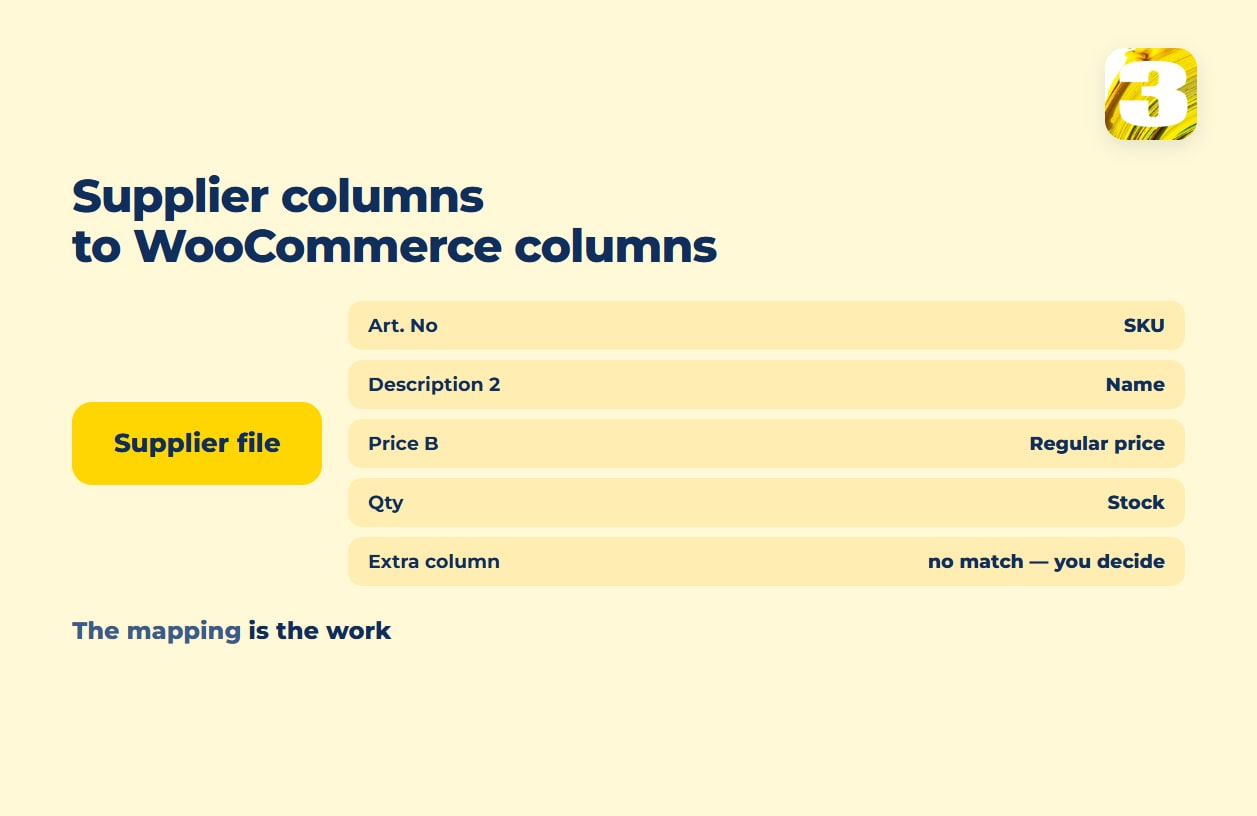
Your supplier’s file has none of those columns. It has “Art. No”, “Description 2”, “Price B”, a stock figure that may be a number or the word “yes”, and sizes spread across columns instead of rows. The importer’s mapping screen asks you which of their columns is which of yours, and nothing in any tool answers that for you. That decision — which supplier field is your SKU, and what happens when their part number isn’t your part number — is the actual work of a product import, and it’s why the same file takes the same effort in the free importer and in the paid plugin you buy to avoid it.
Three format details catch people out. Variations come in as separate rows marked Type = variation with a Parent column pointing at the parent’s ID or SKU, so a supplier file that lists sizes sideways has to be reshaped into rows first. Images can be given as external URLs and WooCommerce pulls them into the Media Library, which works only if those URLs are directly accessible. And if the upload fails on file size, that ceiling is set at the server level — WooCommerce’s own answer is to ask your host to raise it.
WooCommerce Bulk Edit in the Admin vs. Editing the CSV
Not every change needs an import at all. The products list in WordPress admin lets you select rows and apply one change to all of them, which is the right tool when the change is identical everywhere: same category added, same status, same flag flipped. It also raises or lowers existing prices by a fixed amount or a percentage (WooCommerce docs).
A spreadsheet wins when the value is different on every row — new prices from a supplier, a stock count per SKU, a description rewritten per product. Same value for everyone, edit in the admin; a different value per row, export, edit, re-import. One caution for the CSV route — an update overwrites what’s in the store, and the export you started from is your quickest way back, so keep it next to a site backup — and, as WooCommerce’s docs advise before a large import, test a small batch on a staging site first.

When the Built-In CSV Import Is Enough, and When It Stops Being an Import
A single catalog, loaded once, from one supplier who sent one clean file: the built-in importer does that, for free, and buying a plugin changes nothing about how long the mapping takes. Paying makes sense when you hit a wall the free tool doesn’t cover — a format it won’t read (it takes CSV; WP All Import also reads XML and Google Sheets), custom fields it doesn’t touch, or a job you’ll be repeating.
The repeating job is where things change. If the same supplier sends a fresh file every Monday, you’re not importing any more — you’re synchronizing. An import is something you do and finish; a sync has to keep running and keep deciding what to do when the file itself changes. Scheduled imports are the halfway house: cheaper than a custom build, but they still do exactly what the file says, including the mistakes in it. What supplier-side plugins keep in step, and what they leave to you, is covered in our piece on WooCommerce dropshipping plugins.
Moving an existing catalog off another platform is a different job with different traps, laid out in migrating between WooCommerce and Shopify.
Writing Your Own Import Plugin for WooCommerce
WooCommerce runs on WordPress, which means the import step is code you’re allowed to own. We write WordPress plugins, and an import plugin is one of the more worthwhile ones: it reads your supplier’s actual file — the XLSX with merged header rows, the feed with prices that need a markup rule applied, the categories that have to be derived from a part number — and does the mapping identically on each run, because it was written for that one file. The pass over the file stops being something a person repeats every time.
It’s the same shape of problem as the rest of data entry automation: something has to read a messy input and produce a clean record. If the store itself needs custom fields or behavior to hold that data, that belongs with ecommerce development rather than with a plugin bought off the shelf.
What It Costs to Have the Catalog Loaded for You
We do this as a service, from $0.02 per product, and have uploaded more than 100,000 products so far. The price covers collecting descriptions and photos from the supplier’s website with the supplier’s permission, AI processing of descriptions and specifications with a person reading every item before it goes live, photos brought to one standard, and the upload itself. Recurring price and stock sync is quoted once we’ve seen the supplier’s files. Our catalog projects have run on WooCommerce, Magento and marketplaces.
The service page covers loading a supplier catalog without mapping the columns by hand. The first step is a free look at your catalog and an estimate — no commitment, and no plugin purchase required to find out.