


Most small business sites don’t find out something broke until a customer says so. A checkout button throws a JavaScript error in one browser, a contact form quietly stops sending submissions after a plugin update, a product image starts 404-ing after a CDN change — and none of it shows up anywhere you’re already looking. Google Analytics counts visits, not failed requests — not out of the box, anyway. Your host’s uptime monitor checks whether the server answers, not whether the page it hands back actually works.
Error tracking closes that gap, and it doesn’t have to turn into a dashboard project or a hire. For most sites, it’s two tools — one watching the code, one watching what Google sees — set up in an afternoon and then mostly left alone until something’s actually wrong.

What’s Worth Tracking, and What’s Just Noise
Not every warning deserves attention, and treating them all the same is why teams give up on error tracking within a month of turning it on.
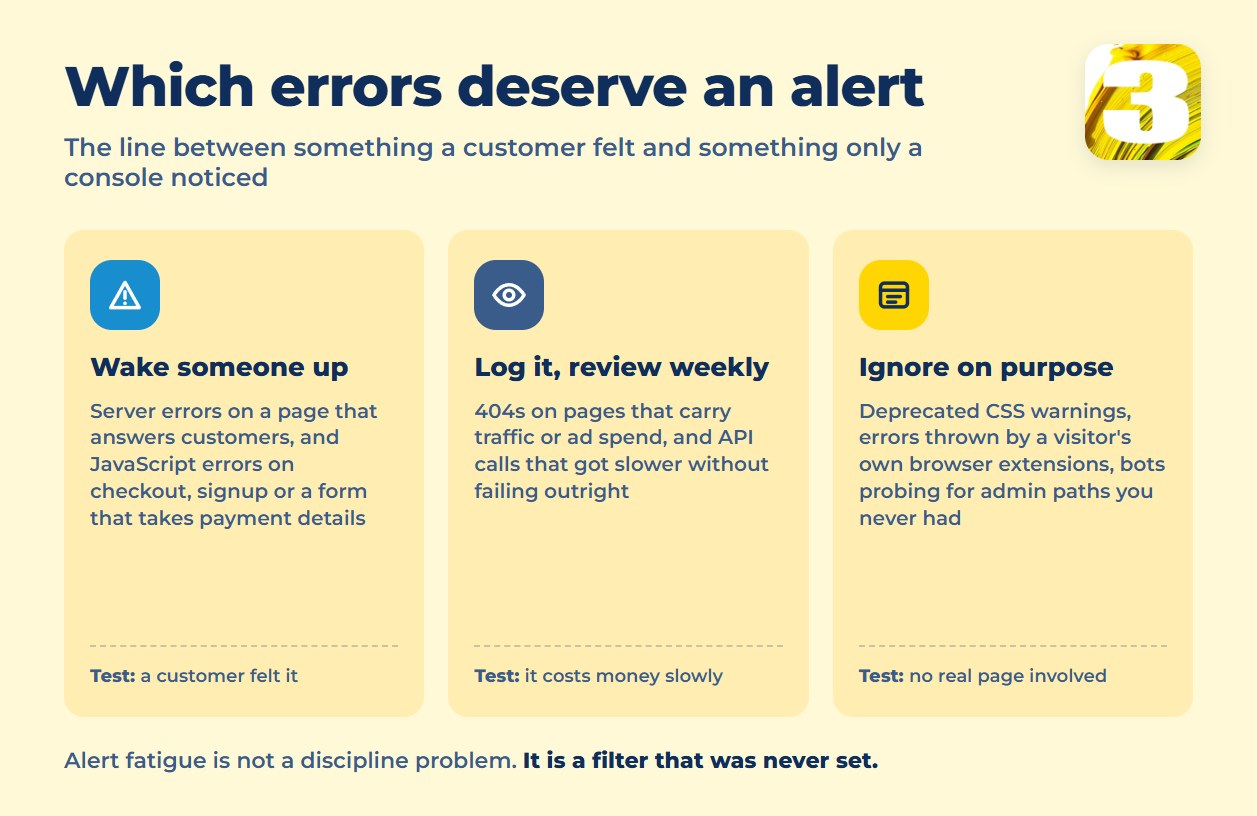
Worth catching:
- Server errors (5xx responses) — the site is actively failing to answer.
- JavaScript errors on checkout, signup, or any form that takes payment or contact details.
- Failed form submissions — the form loaded fine but the data never arrived anywhere.
- 404s on pages that carry traffic or ad spend — a broken landing page burns budget every hour it stays broken.
Safe to ignore:
- CSS warnings about deprecated properties.
- Errors thrown by a visitor’s own browser extensions, not your code.
- 404s from bots probing for login pages and admin paths that don’t exist on your site.
If an alert doesn’t map to a page a real customer uses, it doesn’t need to interrupt anyone’s day.
Two Tools Cover Most Small Sites
You don’t need an enterprise platform to start.
Sentry watches your code — frontend JavaScript and backend errors — and reports what broke, on which page, for how many users. Its free plan covers 5,000 errors a month, one user, and a 30-day lookback, which is enough for most sites that aren’t running at real scale yet.
Google Search Console watches what Google itself runs into: server errors when Googlebot tries to crawl a page, and soft 404s — pages that look empty or broken but still return a “200 OK” instead of an honest 404. The Page indexing report lists both, and if you’ve done any SEO work already, the account is probably sitting there unused.
Between the two, you’re covering what breaks for a visitor and what breaks for the search engine deciding whether to keep sending you visitors at all.
The install itself is the short part, and it’s worth saying plainly because guides often skip it: Sentry gives you a project key — a DSN — that goes into your site once, either through the platform’s own plugin or a few lines in the page template, and Search Console needs a one-time ownership verification through DNS or a file on the server. Neither takes an afternoon. The work that follows — deciding what deserves an alert — is the part that actually takes judgment. And keep whatever uptime monitor your host already gives you: it answers a different question, whether the server is up at all, and it costs nothing to leave running.
Alerts That Don’t Get Ignored
The usual failure mode isn’t skipping an error tracker — it’s turning one on, getting flooded with notifications in the first week, and muting the channel by week two.
Set thresholds instead of per-event pings. Sentry supports metric alerts that fire once error counts cross a threshold you set, rather than pinging on every occurrence — see its alerting documentation. Set that way, it stays quiet until something is actually a pattern.
Send those alerts somewhere your team already looks — a Slack or Teams channel, not a shared inbox nobody opens on weekends. And put one name next to each critical path: checkout, signup, the main contact form. An alert with no assigned owner gets read and ignored by everyone equally.
Test the Setup Before You Trust It
Don’t assume it works — prove it, the same week you turn it on:
- Load a page that doesn’t exist and confirm the 404 shows up where it’s supposed to.
- Submit a form with a required field left blank and confirm the failure gets logged, not just quietly rejected by the browser.
- If you can safely trigger a backend error in a staging environment, do it and watch for the alert to land.
If nothing shows up after that, you don’t have error tracking — you have a tool that’s installed but not actually connected to anything.
When an Alert Should Turn Into a Workflow
Once alerts are landing somewhere real, the next failure point is what happens after someone reads one. If a failed form submission still means a person manually checks the log, digs up the customer’s email from a backup source, and follows up by hand, you’ve automated the noticing but not the fixing.
That’s the same “when A happens, do B” test we use for any process worth automating: a failed submission can open a ticket on its own, a repeated 5xx on the same endpoint can post to Slack with the last few occurrences attached, a soft 404 on a paid landing page can flag the ad group before more budget burns on a dead page. None of that requires rebuilding your error tracker — it requires wiring the alert to the next step instead of leaving it for someone to notice on their own time.
Whether that’s worth building depends on how often the error actually recurs — the same question that comes up whenever someone’s pricing out workflow automation for any repeated task, not just error handling. An error that happens twice a year is fine left to a person checking a dashboard. One that happens every week is quietly costing someone real time.
For reference on what that costs: we quote a single connected workflow at a fixed $800, or $1,500 for a set of up to three, priced once rather than as a monthly platform fee.