


In this article
- What Amazon Switched Off in 2025, and Why Your Flat File Still Works
- Your Amazon Inventory File Template Comes From Your Category
- GTIN, UPC, and the Exemption Route
- Reading the Report After an Amazon Bulk Listing Upload
- Why Your Supplier’s File Doesn’t Drop Into the Template
- What We Do on Marketplace Catalog Uploads
You have a few hundred products in your store and you want them on Amazon. Creating them one at a time in Seller Central isn’t a plan, it’s data entry with no end date. The bulk route is a flat file: a spreadsheet you download from Amazon, fill with your product data, and upload back. It works, and when it fails it usually fails in the same handful of places — which is good news, because those places can be checked before you upload instead of discovered afterward.
What Amazon Switched Off in 2025, and Why Your Flat File Still Works
Start here, because this is the part most often misread. Amazon did remove something in 2025, and the news traveled as a claim that Amazon was killing flat files. What was actually removed was XML and flat-file listings feeds submitted through the Feeds API — the developer channel that third-party apps and custom integrations use, not the upload button in your account. Amazon’s deprecation notice says it in one line: “This deprecation does not impact any listings feeds submitted by sellers directly through Seller Central.” The removal date moved twice after that and landed on July 31, 2025.
So the practical reading splits in two. If you fill in a template and upload it yourself in Seller Central, nothing about your process broke. If a plugin, connector, or agency integration pushes listings to Amazon on your behalf, that’s a question worth asking whoever maintains it: the programmatic channel now is the JSON-based Listings Items API, or the JSON_LISTINGS_FEED submitted through the Feeds API. An integration still built on the old feed types stopped working after July 31, 2025.
Your Amazon Inventory File Template Comes From Your Category
There is no single Amazon spreadsheet. You choose a product category on the Add Products via Upload page in Seller Central and download the template that belongs to it, and the columns you get are the ones that category requires. A category that sells clothing asks for things a category that sells power tools never mentions, and the reverse. This is why “just send me the Amazon file” is not a request anyone can answer in the abstract — the templates live behind your seller login.
Two consequences follow. First, a category’s required attributes can change, so a template downloaded last year for the same category is not a safe starting point — pull a fresh one before every bulk run. Second, a supplier’s product line that spans several categories may need separate templates, because each category carries its own required attributes. Planning that split before anyone starts filling cells saves the rework of discovering it at the error stage.
GTIN, UPC, and the Exemption Route
Amazon matches your item against its catalog using a product identifier — in most cases a GTIN, the number behind the UPC barcode on the package. If that identifier already matches something in Amazon’s catalog, your upload generally attaches your offer to the existing listing rather than creating a second one; if nothing matches, a new listing is what you get. Either way, the number has to be right: for a product you resell, that’s the manufacturer’s barcode; for a product under your own brand, a GS1-issued number of your own.
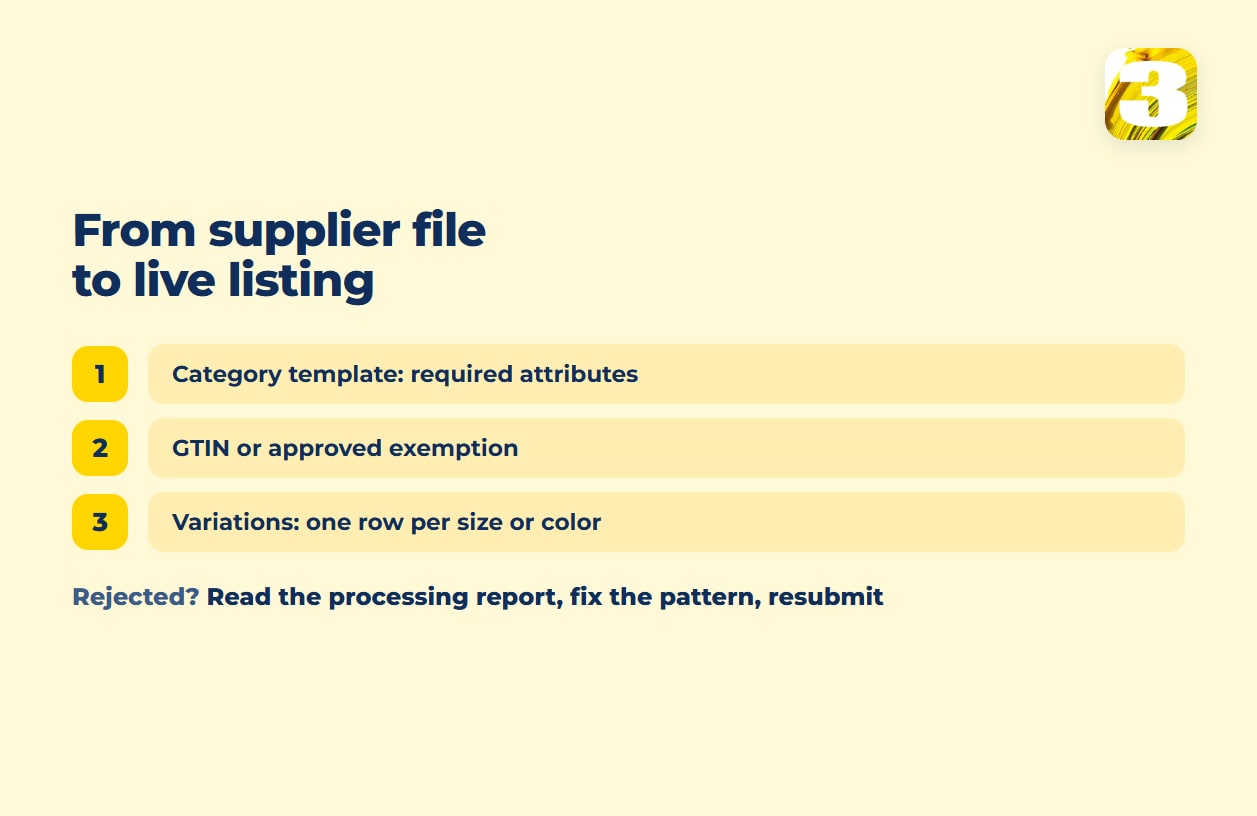
The rule underneath is not Amazon’s, it’s GS1’s: “Each variation of each product you sell requires a unique GTIN,” per GS1 Canada. Every size, every color, every combination is its own number. In the upload, each size or color is its own row with its own identifier, tied to a parent item that groups the variations. A single row for “the shirt” in general doesn’t go through, and sellers who bought one barcode for it and try to upload nine variants under it are describing a rejection before they start.
Handmade goods, bundles, and private-label items sometimes have no GTIN at all, and Amazon has a path for that. Amazon’s Listings APIs FAQ puts it plainly: “for exemption, you must submit a manual exemption request through your Seller Central account.” Once approved, the submission has to carry the brand name the exemption was approved for, with the supplier_declared_has_product_identifier_exemption attribute set to true — Amazon’s FAQ lists both as requirements. The order matters: the exemption is requested and granted first, then the upload goes through. Requesting it after a failed bulk run means running the bulk upload twice.

Reading the Report After an Amazon Bulk Listing Upload
An upload that “went through” is not an upload that worked. Amazon returns a processing report, and that report is the whole feedback loop — it tells you which rows landed, which were rejected, and what the validator objected to, row by row. On the API side, the same Listings APIs FAQ describes the mechanism directly: “the feed processing report includes validation feedback from the Listings Items API v2021-08-01.”
The habit that separates a smooth catalog launch from a drawn-out one is simple: treat the first upload as a test. Send a small batch, read the report line by line, fix the pattern it exposes — because a bad unit of measure or a missing required attribute is almost never wrong on one row, it’s wrong on all of them — then send the rest.
Why Your Supplier’s File Doesn’t Drop Into the Template
Here is the honest description of the work. A supplier sends a price list built for their own warehouse: their column names, their SKUs, weights in whatever unit their system uses, descriptions written for a trade catalog, photos sitting in a folder or behind a login. The Amazon template wants specific attributes for your chosen category, identifiers that resolve, and photos that meet Amazon’s own image rules. Nothing about the two lines up automatically.
The work between them is mapping — column to column, unit to unit — plus filling the category attributes the supplier never tracked, cleaning descriptions into something a buyer reads, and getting every photo to a consistent standard. Amazon’s photo rules are a subject of their own, laid out in Amazon image requirements. Deciding where that master copy of your product data lives before it ever reaches a template is the question behind our guide to PIM software and what to use instead, and keeping one stock number honest across your own store and a marketplace afterward is walked through in our piece on multichannel inventory management.
What We Do on Marketplace Catalog Uploads
Supplier data to accepted listings is routine work for us: more than 100,000 products uploaded so far, Amazon among the destinations. Bulk product upload is priced from $0.02 per product, Amazon included, and that covers collecting the data from the supplier’s site, with the supplier’s permission, when there’s no clean file; AI processing that brings descriptions and specs into one consistent format, with a person reading the output before anything goes up (see how we automate product descriptions using AI); photos brought to a single standard; and the upload itself.
Price and stock sync with suppliers is priced after we look at the project. Getting an accepted listing found is a separate job — Amazon listing optimization for the title and bullets, Amazon keyword research for what belongs in them.