


Search “construction time tracking software” and you get dozens of apps promising to fix the timesheet. Most of them can — for an office. On a job site, the real problem isn’t which app you buy. It’s that a timesheet was never built for a place with no desk, no steady signal, and five different addresses in one week.
A timesheet doesn’t lie because your crew lies. It lies because of how it gets filled in — from memory, at the end of the week, after five sites have blurred into one shift. By the time payroll opens the sheet, nobody remembers which Tuesday afternoon belonged to which address.

Where the Timesheet Actually Breaks
Four things go wrong, in roughly this order, on almost every crew still running on paper or a spreadsheet.
- It’s written from memory, once a week. Hours get logged Friday afternoon, not Tuesday at 7 a.m. Nobody remembers a 20-minute gap between two sites three days later — so it gets rounded, guessed, or skipped.
- There’s no signal on site. New builds, basements, and rural roads don’t have reliable data. An app that needs a live connection to punch in just doesn’t get used, and the crew goes back to a paper pad in the truck.
- Hours land on the wrong job. One crew, two addresses in a day, one line on the sheet. The job that actually ran over budget looks fine, and the one that finished under budget eats hours it never used.
- Overtime shows up on payday, not before. A timesheet is a record, not a warning. By the time anyone sees the extra hours, the shift that caused them is already over and the cost is already spent.
What Actually Matters More Than the Price Tag
Before comparing monthly rates, three questions decide whether any of these tools actually solve the problem above.
Is the location tied to the job, not just the person? GPS that shows where an employee is standing tells you they’re on-site. It doesn’t tell you which of three jobs on that street the hours belong to unless the app ties the clock-in to a specific project.
Does it work with zero bars, not just weak ones? “Offline mode” means different things. Some apps queue a clock-in on the device and sync later; others just retry the same request faster and still fail in a basement. Ask specifically what happens with no connection for an hour, not five minutes.
Who approves the hours, and when? A tool that captures clean data but routes it to nobody’s inbox until Friday hasn’t fixed the timing problem — it’s just moved the guesswork from the worker to the software.
We looked at this same question one level up, at the whole project instead of just hours, in our breakdown of buying versus building construction project tracking software — the logic here is the same, applied narrower.
Five Tools, Five Trade-Offs
Prices below are from each vendor’s own pricing page, checked in August 2026. All USD, per user unless noted.
| Tool | Starting price | GPS tied to a job site | Works with no signal | Free plan |
| Clockify | Free up to 5 users; paid from $4.99/user/mo | GPS only from the Pro tier ($9.99/user/mo); no geofencing at any tier | Mobile and desktop apps, syncs once back online | Yes — 5 users, unlimited time entries, no GPS |
| Harvest | Free for 1 seat; paid from $9/seat/mo | Not built in, at any tier | Not offered as a feature | Yes — 1 seat, 2 projects |
| ClockShark | Standard $40/mo + $9/user; Pro $60/mo + $11/user | Yes, both tiers — location pinged roughly every 15–20 minutes while clocked in | Clock-ins queue on the device, sync when signal returns | No free plan; 14-day trial |
| QuickBooks Time | Base fee plus per-employee fee, two tiers; rate changed during 2026 | Geofencing from the Premium tier up | Clocks in offline, syncs on reconnect | No free plan |
| busybusy | Free — unlimited users; Pro from $9.99/user/mo (annual) | GPS tag on every clock-in, even on the free plan | Works offline, syncs later | Yes — unlimited users, GPS clock-ins included |
A note on QuickBooks Time: the vendor publishes pricing as a base fee plus a per-employee fee across two tiers, and that per-employee rate changed during 2026. We’re not printing an exact figure here because it moved during our research — check the current number on the vendor’s page before you count on it.
The pattern worth noticing isn’t the price column — it’s what sits behind it. busybusy is the only one that puts GPS on its free tier; Clockify’s free plan tracks time but not location at all. ClockShark backs its GPS with the most granular pinging of the five, but ties every plan to a three-year contract term, published on its own pricing page — worth weighing against a monthly rate that looks cheap on its own.
None of this makes one tool universally “best.” It makes the comparison the actual work: match the offline behavior and the job-site logic to how your crews operate, not to which name shows up first in search.
What the Free Tier Actually Gets You
If your crew is small and works one site at a time, busybusy’s free plan is the strongest starting point on this list — unlimited users and a GPS tag on every clock-in, at no cost. Clockify’s free tier is generous on seats but withholds GPS entirely, which defeats the point if job-site accuracy is why you’re looking in the first place. Harvest’s free plan is built for a single freelancer tracking billable hours, not a crew — one seat, two projects, no location data at all.

How Long You’re Actually Required to Keep These Records
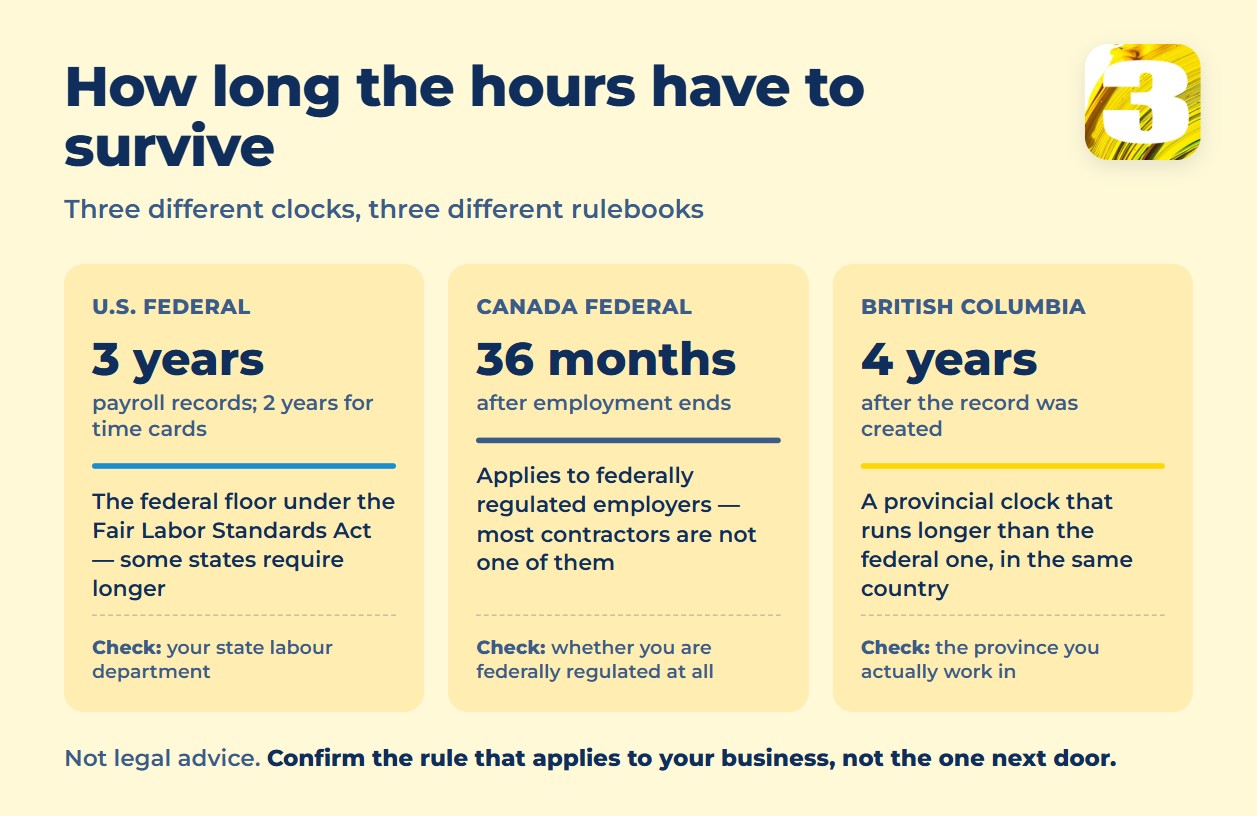
This isn’t legal advice, and the exact answer depends on your jurisdiction — federal rules, state or provincial rules, and sometimes a union agreement can all apply at once. But the general shape is worth knowing before you pick a tool that only stores six months of history.
In the United States, the Fair Labor Standards Act requires employers to keep accurate records of hours worked each workday and workweek for non-exempt employees. Payroll records generally need to be kept for at least three years; records the wage calculation is based on — time cards, schedules — for at least two. The method is flexible: a time clock, a timekeeper, or the worker’s own entry all count, as long as it’s complete and accurate. That’s the federal floor — some states add stricter recordkeeping or longer retention on top of it, so check your state labor department for anything beyond the baseline.
In Canada, the Canada Labour Code sets hours-of-work recordkeeping duties for federally regulated employers — banking, telecom, airlines, interprovincial transport — with employment records kept for 36 months after termination. Most construction companies aren’t federally regulated, though; they fall under provincial law instead. British Columbia, for example, requires hours-worked records to be kept for four years after the record was created — a different clock than the federal one, in the same country.
The practical takeaway: whichever tool you pick, check how far back it actually keeps searchable records, and confirm that against the rule that applies to your business, not the one that applies to the company down the street.
When Not to Call Us
If one of the five tools above covers your crew — a handful of sites, workers who can pick the right job from a short list without hunting, and hours that need to reach payroll and nowhere else — buy it. It’s cheaper than anything custom, and it’ll be maintained by a company whose whole job is that one app.
Where it stops working is scale and connection. Once you’re running enough job sites that “pick the right job from a list” turns into scrolling past forty options, or once time data needs to land automatically in the same place as your invoices, your calendar, and your client records — that’s a different problem than any of the five tools above solve on their own.
What We Build Instead
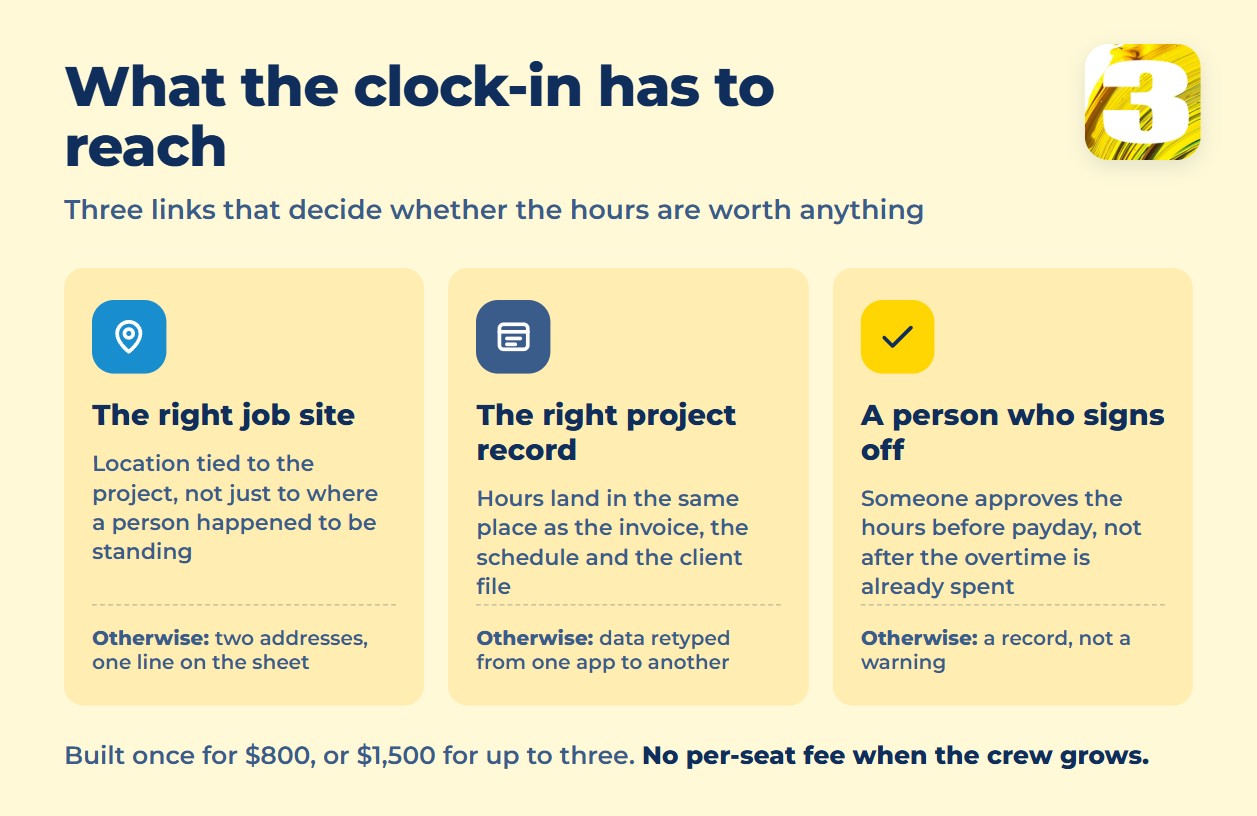
At 3MY, we don’t sell a time-tracking app. We build the workflow that ties a clock-in to the right job site, the right project record, and a specific person who signs off before payday — using tools you may already have, wired to work together instead of separately.
A single workflow like this runs $800; a set of up to three connected workflows runs $1,500. Timeline is usually one to two weeks, more often two — the exact schedule depends on the project. Full detail on how that price is built is in our breakdown of what workflow automation actually costs.
This is the same approach behind the map-based job tracking system we built for a contractor running about 100 sites — addresses arrive without anyone typing them twice, and a card moves when a status changes. Time tracking tied to the same job records is the same idea, applied to hours instead of locations. If that’s closer to your actual problem than a per-seat app, see how the automation service works.
FAQ
1. What’s the real difference between GPS tracking and geofencing?
GPS tracking records where someone was when they clocked in. Geofencing goes a step further and restricts or flags a clock-in based on whether it happened inside a set boundary around the job site. Several tools on this list offer the first without the second.
2. Which of these five tools has a usable free plan for a small crew?
busybusy’s free plan is the strongest for construction specifically — unlimited users with GPS tagging on every clock-in, no cost. Clockify’s free tier covers more seats but drops GPS entirely; Harvest’s free plan is built for one freelancer, not a crew.
3. How long do I actually have to keep time records?
It depends on where your business is regulated. US federal rules generally call for three years on payroll records and two years on the records behind the wage calculation. Canadian federal rules run 36 months after termination, but most contractors fall under provincial rules instead, which set their own timelines. Check the rule for your specific jurisdiction — this article isn’t legal advice.
4. What does it cost to get time data tied automatically to the right job site?
A single automated workflow runs $800; a set of up to three connected workflows runs $1,500, usually delivered in one to two weeks. That’s for a custom build tying your existing tools together — if a boxed app from the comparison above already does what you need, it will cost less.
5. Is it worth paying for a custom workflow instead of just buying software?
Only if a per-seat app can’t cover your actual situation — too many job sites for manual selection, or a need to connect time data to systems the app doesn’t talk to. If none of that applies, buy the software; it’s the cheaper and better-supported option.
Where to Start
This article describes publicly available product pricing and general recordkeeping requirements as a starting point, not legal or compliance advice. Rules vary by jurisdiction and change over time — confirm current requirements with your labour authority before making a decision based on them.
Tell us how many sites your crews move between in a week and where the hours end up today. We’ll tell you whether a boxed tracker covers it, or whether the hours need to be wired to your job records.