


Search for a service near you and a handful of pins show up marked “Sponsored” before the rest of the map fills in. That’s a paid placement — but look for a button labeled “create a Google Maps campaign” and you won’t find one. Maps is a place your ad can appear, not a campaign type you pick from a list, and that’s where most of the confusion starts: a handful of campaign types, two kinds of placement, and a settings screen renamed since most guides about it were written.
This covers the paid side only — where a pin comes from, what you have to switch on yourself, and the one thing it can’t do: move where you rank organically. If you’re building the campaign itself from scratch, the general setup for local businesses is covered here instead: how to create a Google Ads campaign for a local business.

What Counts as a “Google Maps Ad”
Google’s own support page is specific about the baseline: “You must provide the location of your business, have an eligible campaign, and meet Google Ads policy standards.” Nothing about Maps is automatic — it depends on which campaign type you’re running and which of two placements you’re aiming for.
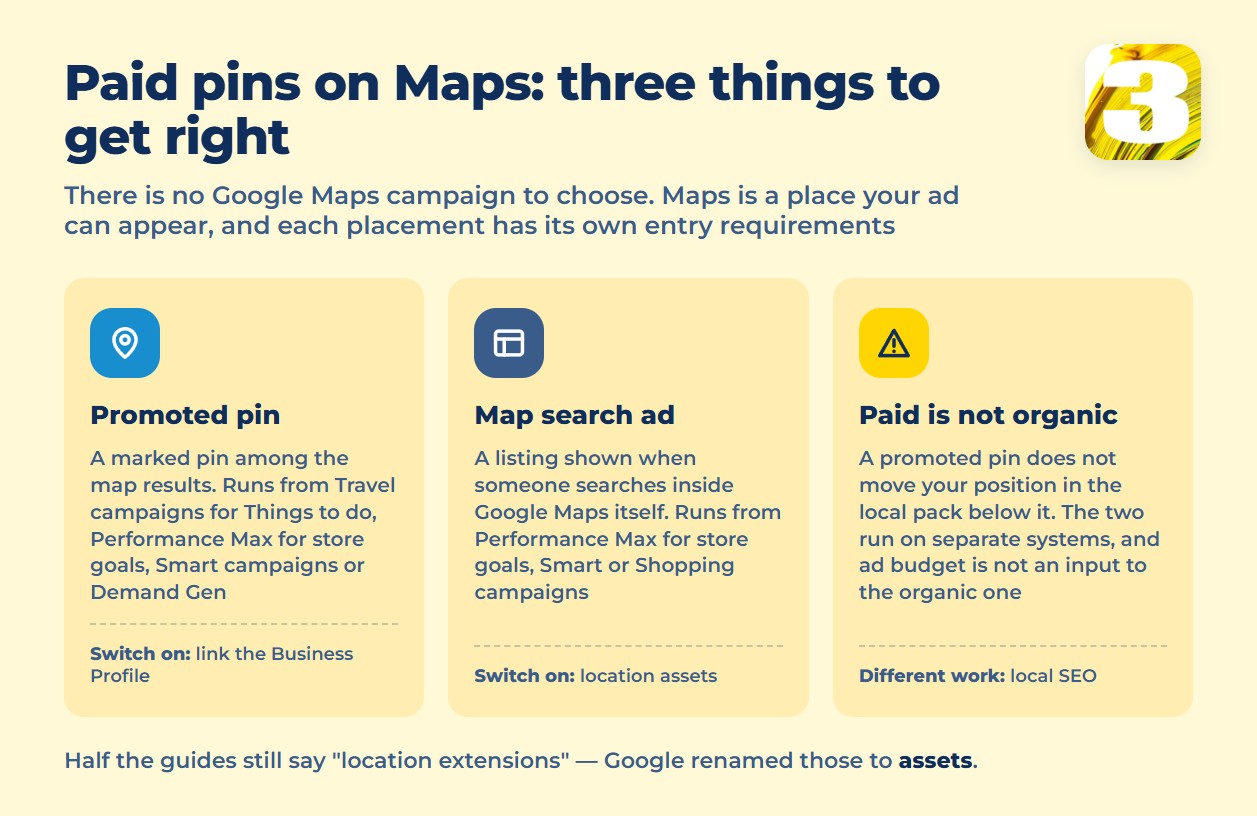
There are two of them, and they draw from different pools of eligible campaigns:
| Placement | What it looks like | Eligible campaign types |
| Promoted pin | A marked pin shown among the regular map results | Travel campaigns for Things to do, Performance Max for store goals, Smart campaign, Demand Gen |
| Map search ad | A listing in the results when someone searches inside the Google Maps app or site | Performance Max for store goals, Smart campaign, or Shopping campaign |
Notice what’s missing from both columns: a plain Search campaign, the type most local businesses already have running. Search campaigns can still show ads on Google’s own search results page — just not inside Maps itself. If your budget is built around a Search campaign, Maps placement means either running a second, eligible campaign alongside it or shifting store-visit goals into Performance Max.
Turning On What Google Doesn’t Turn On for You
Neither placement works out of the box. Each needs one manual step, and they’re different steps.
For a promoted pin, Google is explicit: “Link your Google Business Profile to your Google Ads account.” Without that link, there’s no business location for a pin to attach to — and since the pin inherits its name, address and category from that profile, the profile itself has to follow Google’s own guidelines for representing a business.
For a map search ad, the requirement is a different setting entirely: “Enable location assets in your Google Ads account.” Worth pausing on the word *assets* — a lot of what’s written about local ads online still calls this “location extensions.” Google renamed extensions to assets across the platform, and the older term is still what half the tutorials use. If a guide tells you to go find “extensions” in the menu, it’s describing an interface Google retired.
The same shift explains why “Local campaigns” don’t appear on either list above. Google’s own page on Performance Max for store goals says advertisers “who formerly used Local campaigns can continue to optimize to offline goals using Performance Max campaigns” — which is why Performance Max shows up in both rows of the table.
One more distinction worth making before it causes confusion later: none of this is the Local Services Ads badge you might see attached to a business listing, the pay-per-lead product now branded Google Verified. That’s a separate system with its own eligibility rules and its own billing. There’s a separate piece on what replaced the Google Guaranteed badge.
Paid Placement Doesn’t Move Your Organic Pin
This is the part most explanations of Maps advertising skip entirely, and it’s the one worth understanding before you spend anything: a paid pin and an organic position in the local pack are two separate systems. Buying a promoted pin doesn’t push your listing up the three-pack that shows below it, and it doesn’t touch how Google ranks your business when someone searches without clicking an ad at all.
How that organic ranking actually works — relevance, distance, and prominence, none of which take an ad budget as an input — is covered in full here: how Google Maps ranking actually works. If the organic position is the part that’s actually costing you customers, that’s a different fix than a Maps ad campaign, and it’s the kind of work we do separately: local SEO.
Running both at once is common and reasonable — a paid pin for visibility today, organic work for the position you keep without paying for it. What doesn’t work is assuming one buys the other.
Why the Standard Report Undercounts Maps Ads
The action someone takes off a Maps ad is rarely a click to a landing page. It’s a tap on “Directions” or a phone call placed straight from the listing — and a standard Google Ads conversion report, built around clicks and form fills, doesn’t always catch either one. A campaign that’s quietly generating calls can look like it’s producing nothing, because the thing it’s actually producing never shows up in the column you’re reading.
We’ve written separately about the specific mechanics of why calls disappear from a Google Ads report and what closes that gap: why the report can’t see your phone leads. The short version for Maps ads specifically: if the campaign’s real job is driving calls and visits rather than clicks, the reporting needs to be built to count calls and visits — dynamic call tracking by channel is the tool we run for exactly that reason, so a call sourced from a Maps pin doesn’t get lumped in with one that came from the website footer.
Where Paid Maps Placement Doesn’t Help Much
A promoted pin needs a business location to attach to — no address, no service area, no pin. A business that operates purely online, with no storefront and no service area, has nothing for Maps advertising to hang on to, and Google’s own eligibility requirement makes that a hard stop, not a workaround. For that kind of business, the ad budget belongs elsewhere — Search or Shopping campaigns aimed at where people actually search for what’s being sold.
Getting the Setup Right
None of the above is complicated once the pieces are named correctly: link the Business Profile, enable location assets, pick a campaign type that’s actually eligible for the placement you want, and don’t confuse a paid pin with the organic ranking sitting next to it. The part that trips people up is usually terminology that’s a version or two out of date, not the concept itself.
If Maps placement is one piece of a bigger question — what the account should cost overall, and whether the campaign mix makes sense before adding another type — that’s worth working out before committing more budget. Worth reading next: what a month of Google Ads actually costs.