


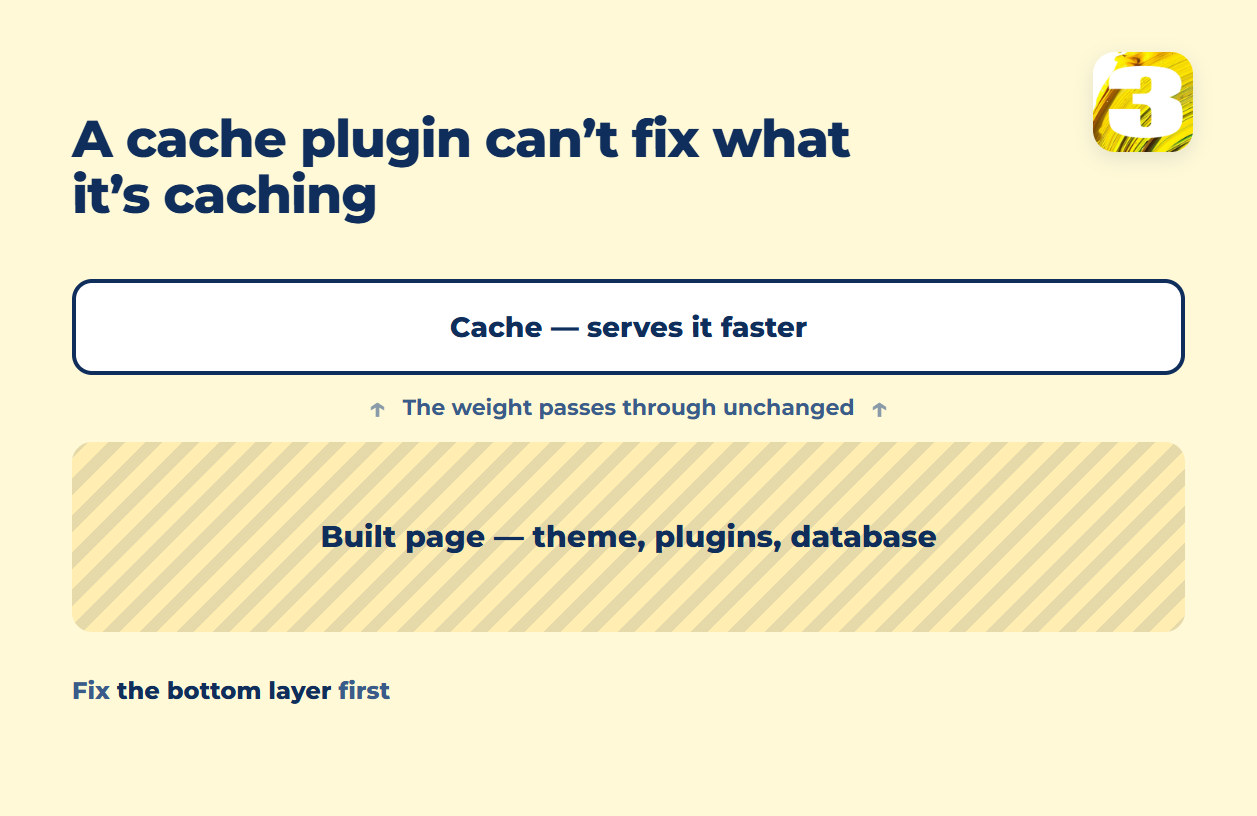
You installed a caching plugin. The site is maybe a little faster, or not noticeably faster at all, and you are stuck wondering what you paid for. The short answer: a caching plugin only speeds up serving a page that is already assembled. If the page itself is heavy — a theme loading its full library, a page builder rendering the same CSS on every route, a database dragging behind every request — a cache just serves that same heaviness a little quicker. It never touches what made it heavy in the first place.
WordPress speed optimization means finding which of those it actually is before buying another plugin to fix it.
What a Caching Plugin Can and Cannot Do
A caching plugin stores the finished HTML output of a page so WordPress does not have to rebuild it from the database on every visit. That is a real, useful job — for a page that gets rebuilt exactly the same way each time.
What it cannot do:
- Rewrite a heavy theme or builder. If your theme or page builder loads its full CSS and JavaScript library on every page to render one section, caching the result still ships that same weight to the visitor’s browser. The plugin has nothing to trim; the weight is baked into the page it is caching.
- Fix pages that cannot be cached at all. A cart, a checkout, an account page — content that is different for every visitor — cannot be served from a static cache the way a blog post can. Speed optimization in WordPress for a store has to account for these pages separately, because the plugin is structurally unable to help with them.
- Clean up what runs on every page anyway. Plugins for forms, popups, sliders, and tracking each add their own script, and many of them load on every page whether that page uses the feature or not. A cache plugin does not know or care which of those are doing anything; it caches the page with all of them attached.
- Fix a database that has grown heavy. Years of installed and removed plugins tend to leave settings behind in the database that WordPress still loads on every single request. WordPress’s own performance documentation recommends keeping that data lean and using a proper database engine and server-side cache — none of which is a page-caching plugin’s job.
The Diagnosis, Not the List: How to Speed Up a WordPress Site
The honest way to find out where the weight is sitting is not a plugin count. There is no official measurement of how many milliseconds any given plugin costs — the only real method is removing one at a time and checking what changes, and that is the approach WordPress.org itself recommends: disable what you can live without, and measure, using PageSpeed Insights or the field data your site already collects. Ten plugins is not automatically a problem; three heavy ones can outweigh ten light ones. What matters is what each one does — extra database queries on every load, its own script queued on every page — not the number sitting in the plugin list.
The same logic applies to the theme and the version of PHP behind it. A newer PHP version generally performs better than an older one on the same hosting, at no cost beyond the upgrade itself — WordPress.org’s current recommendation is PHP 8.3 or newer. A heavy, graphics-laden theme performs worse than a light one doing the same job, independent of any plugin sitting on top of it.

Where the Weight Usually Sits
For a typical WordPress site, the causes worth checking in order are:
- The theme or builder. Is it loading CSS and JavaScript for features the page does not use?
- Plugin scripts on every page. Are forms, sliders, and tracking tools queuing their code site-wide instead of only where they run?
- The hosting tier. Shared hosting trades cost for control; if the server itself is slow to respond, no plugin fixes that.
- The database. Has years of plugin history left behind autoloaded settings nobody uses anymore?
- For a store: cart fragments and other dynamic pieces that refresh on every load, plus checkout pages that cannot be cached at all.
A caching plugin sits downstream of every one of these. It is worth having, but it is a layer on top of the build, not a substitute for it. For the general order of fixing speed issues on any platform, see the order speed fixes should follow; the thresholds that decide what “fast enough” actually means are covered in the Core Web Vitals thresholds.
Improving WordPress Website Speed: Plugin or Rebuild
If the weight is sitting in the theme, the builder, or years of accumulated plugins, a caching plugin is renting a partial fix. It will not undo what the template does on every page load. We build WordPress sites ourselves and solve this at the template level — deciding what loads where before a single plugin gets installed, rather than adding one after the fact to cover for a heavy build.
Built that way from the start, a site of up to eight pages is $1,900 and a store is $3,900 — copywriting is part of the build, not a separate line — with a usual turnaround of 10 business days once materials and feedback stop being the bottleneck. If you go with a different developer afterward, you keep the site you paid for — that condition does not change based on who maintains it next. Plugins get added over time — a form here, a popup there — and each one arrives with its own scripts. Keeping that from creeping back is part of what maintenance covers, priced after a look at what the site actually runs.
Choosing WordPress at all is its own decision, separate from speed — see how it compares to Wix if you are deciding on a platform rather than fixing an existing one. And if a store’s product pages are slow specifically because visitors cannot find what they are searching for, that is a different problem with its own fix.
Images are their own fix too, not a plugin setting — see Optimizing Images Without Slowing Down the Store for that piece specifically.
Send your site’s address and we will tell you whether the weight is in the plugins or in the build — and which one that caching plugin was never going to fix.